

The Consult is where you record the actual clinical visit, including the patient's complaint, your diagnosis, and what you prescribed or recommended. Unlike the FPE (which is one-time), the Consult is recorded for every visit.
📌 Before you start, the patient needs to be in your Daily Visits queue and you'll need to have either completed the FPE (for new patients) or recorded fresh Vitals (for follow-up patients). See How to complete a First Patient Encounter (FPE).
Step 1: Go to Daily Visits in SMD YAKAP
Step 2: Add the patient and open their record
Step 3: From the section list on the left, click Section 10 (Subjective) to start the Consult
For follow-up patients, Sections 2 to 9 of the FPE are already saved from the previous visit, so you can jump straight to Vitals and then Section 10.
The green dot indicator
Same as the FPE: a green dot beside a section name means it's complete. No dot means a required field is still missing.
📌 Watch the green dots as you go. A complete Consult means every section under 10 to 15 has a green dot. If any are missing when you mark the visit Complete, the status will show No Submission. See: What does "No Submission" mean?
The 6 Consult sections at a glance
| # | Section | What it captures |
| 10 | Subjective | Chief Complaint and Illness History (both required). Click + Show Signs and Symptoms to see more options. |
| 11 | Diagnosis | Click + Add Diagnosis and search ICD-10 codes. If the patient is not sick, click Essentially Well. |
| 12 | Diagnostics | Click + Create Diagnostic Request to order labs. There's a quick recommended set based on the patient's age — you can select all to create the request fast. |
| 13 | Medicine | Click + Create Prescription. The medicine list comes from the 75 medicines under the GAMOT module. |
| 14 | Management | Required. Click + Show Interventions for more options. If you have nothing to enter, toggle Not Applicable on. |
| 15 | Advice | Required. If you have nothing to enter, toggle Not Applicable on. |
⚠️ Regarding Dispense toggle in Section 13 (Medicine): only tick this if you actually gave the medication to the patient at the visit.
⚠️ Regarding the 75 medicines under GAMOT: GAMOT operates independently from the YAKAP module.
Integration between SeriousMD and PhilHealth GAMOT is not available today, but may be explored as a future opportunity when PhilHealth makes the system available to EMR providers.
Saving the Consult
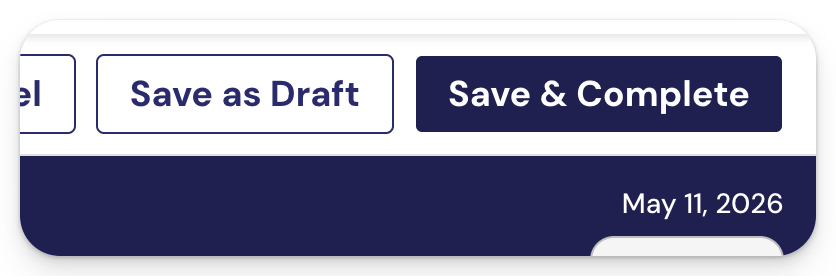
Once all 6 sections show green dots, you have two options:
OPTION 1: Save & Complete — Use this when the visit is fully done and you're confident nothing else needs editing.
⚠️ Once you mark a record as Complete, you can no longer edit it. Use this only when you're sure.
OPTION 2: Save as Draft — Use this when you might still need to make changes later. The record stays editable.
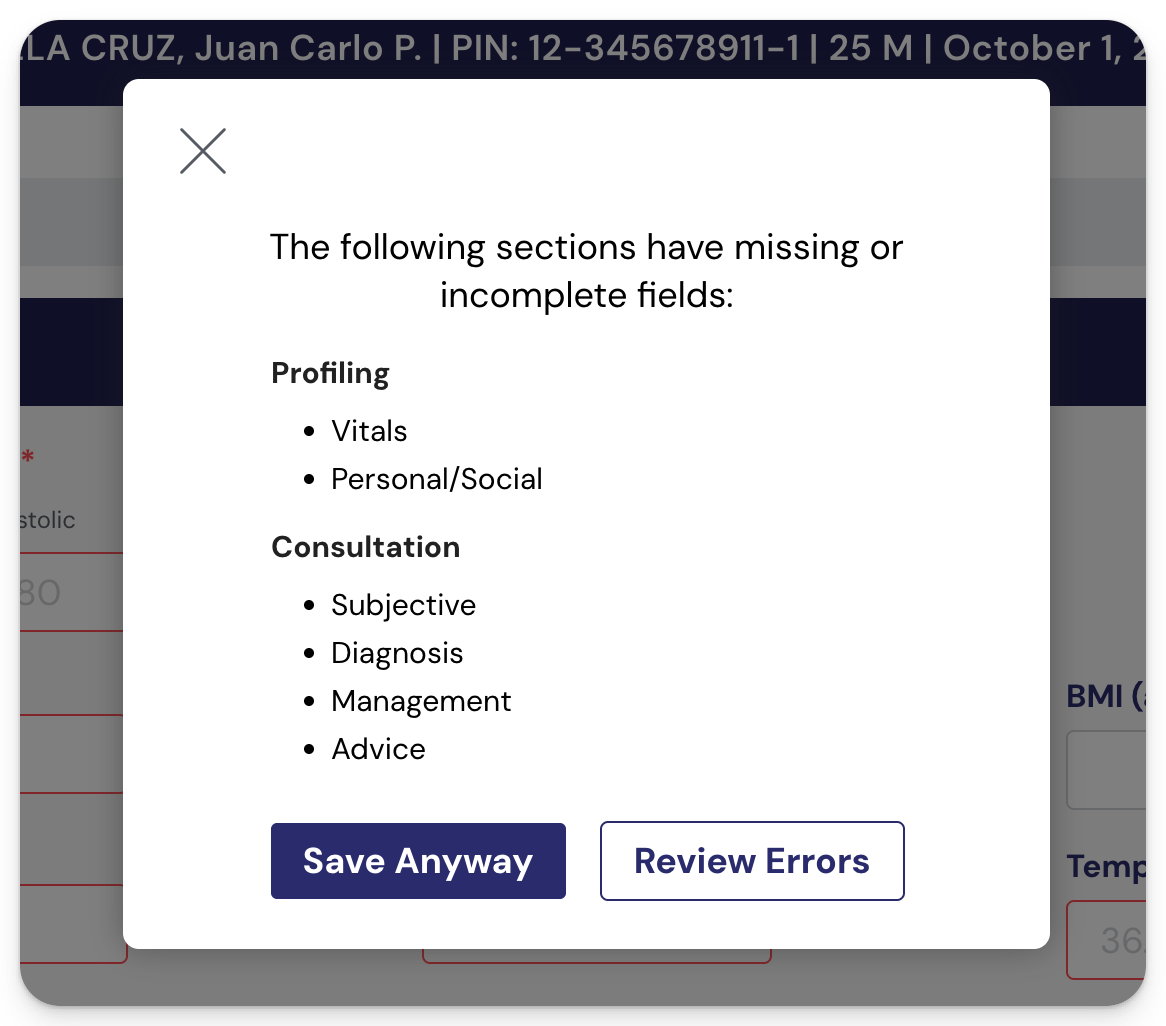
If you click Save & Complete and something is still missing, the system will warn you and offer a Review Errors button. Click it to jump to the missing sections and fill them in.
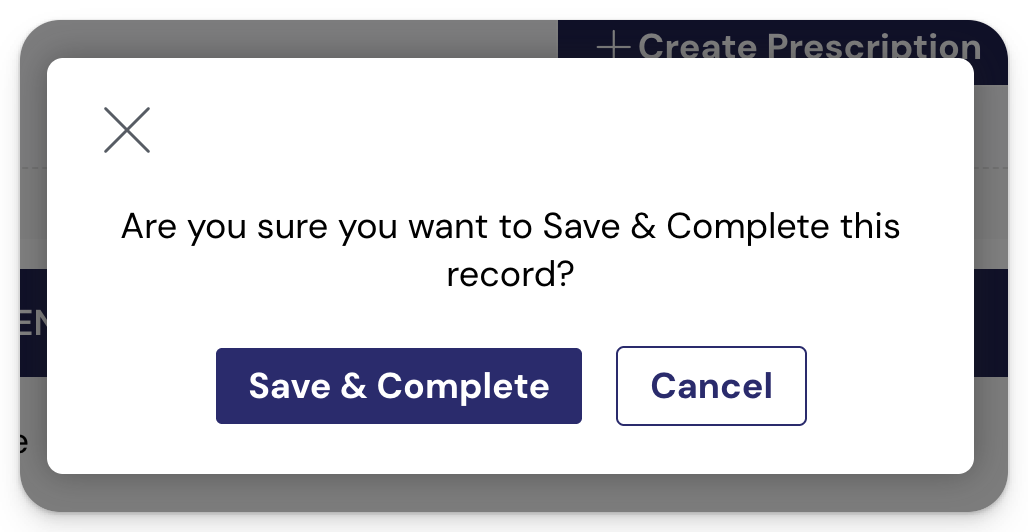
If everything is in order, you'll see a confirmation prompt instead, and the visit will be marked complete.
Frequently Asked Questions (FAQs)
1. I clicked Save & Complete but the status is "Confirm Registration". What do I do?
2. I clicked Save & Complete but the status is "No Submission". What do I do?
