The First Patient Encounter (FPE) is the patient's intake record, covering vitals, history, and baseline findings. You'll do this once per patient, on their first visit with you. After that, every follow-up visit only needs fresh Vitals plus the Consult.
Step 1: Go to Daily Visit in SMD YAKAP
Step 2: Click + Add Patient
Step 3: Search the patient by PIN or by name. Once found, their name will be found below with the status Registered in this facility. This means that the patient is in your masterlist.
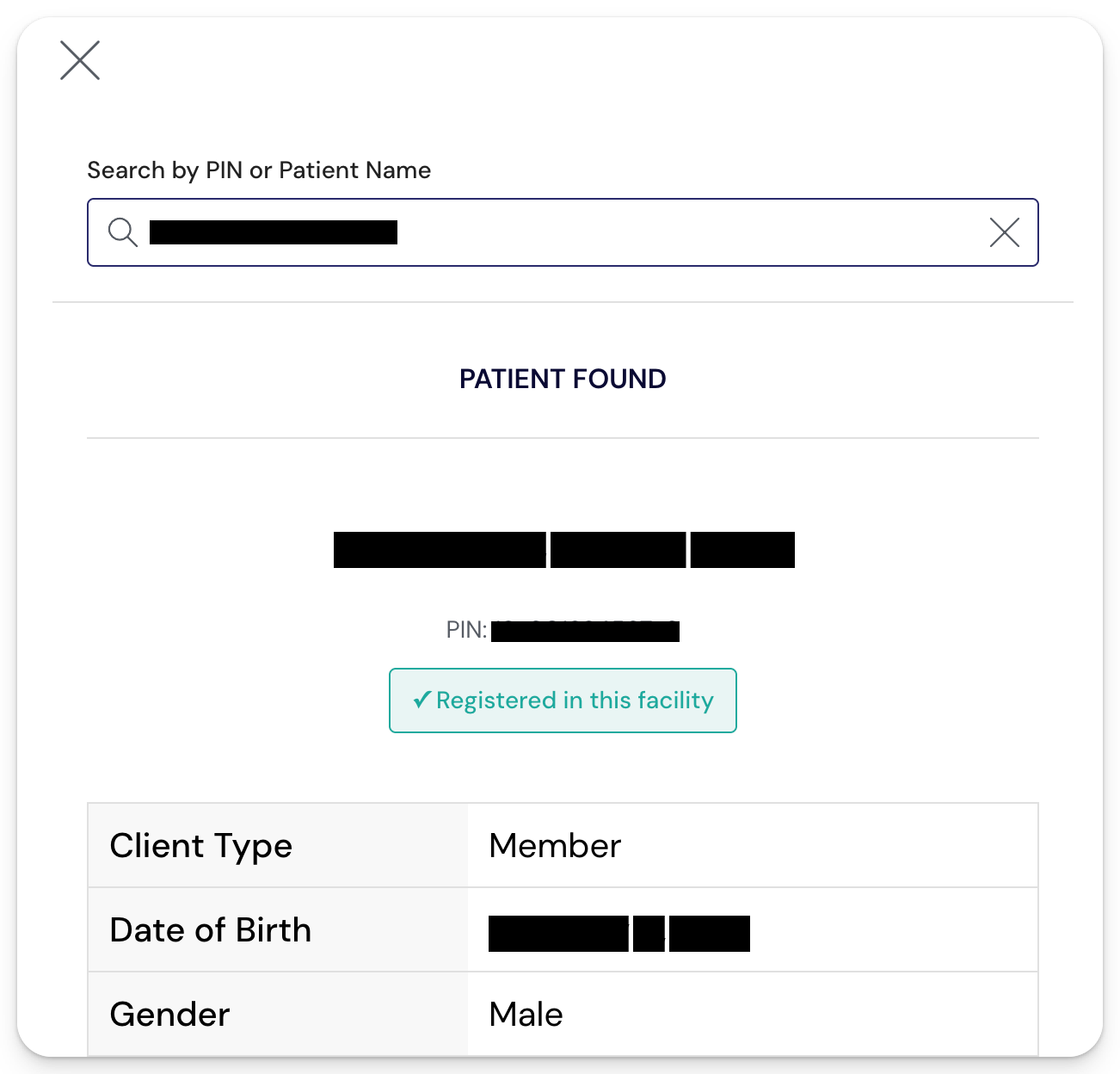
Click Continue Registration. 
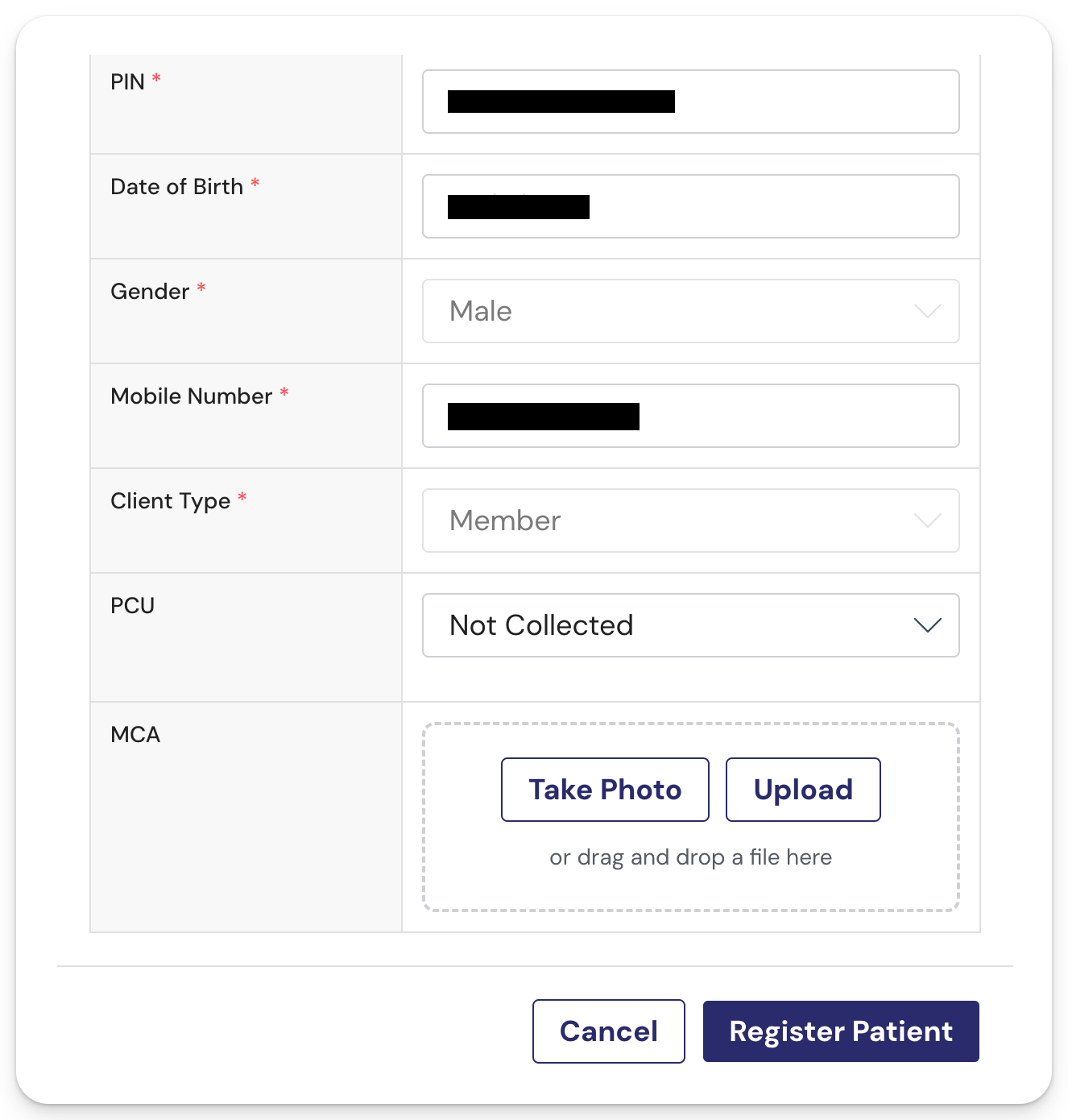
You'll have an option to upload the patient's PCU and MCA at this point. You may upload this later. Click Register Patient to continue.
They'll be added to your Daily Visits.
From Daily Visit, open the patient record and click + Create Record.
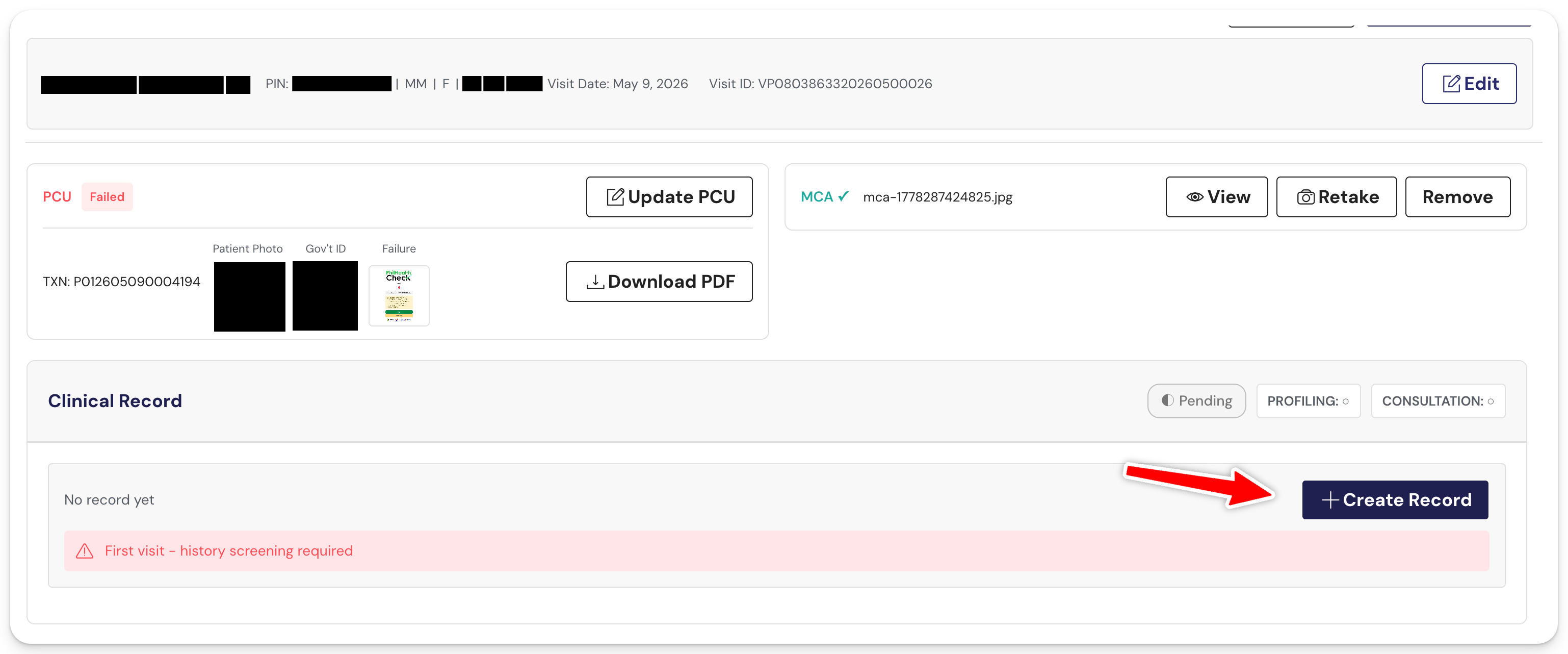
You'll land on the encoding screen.
How to navigate the sections
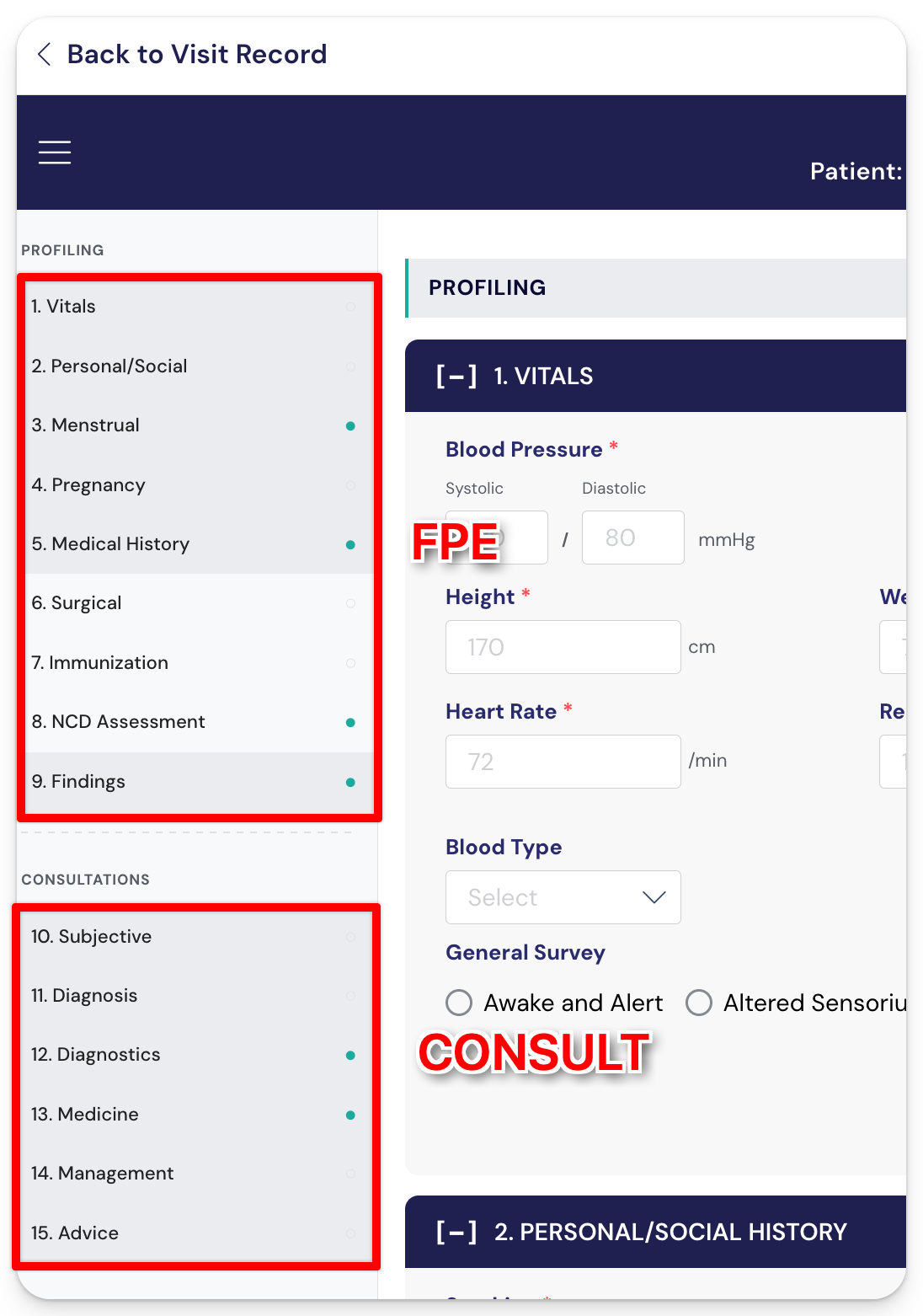
The encoding screen has 15 sections total. Sections 1 to 9 are the FPE. Sections 10 to 15 are the Consult.
You'll see all 15 listed on the left side of the record. Click any section name to jump straight to it.
The green dot indicator
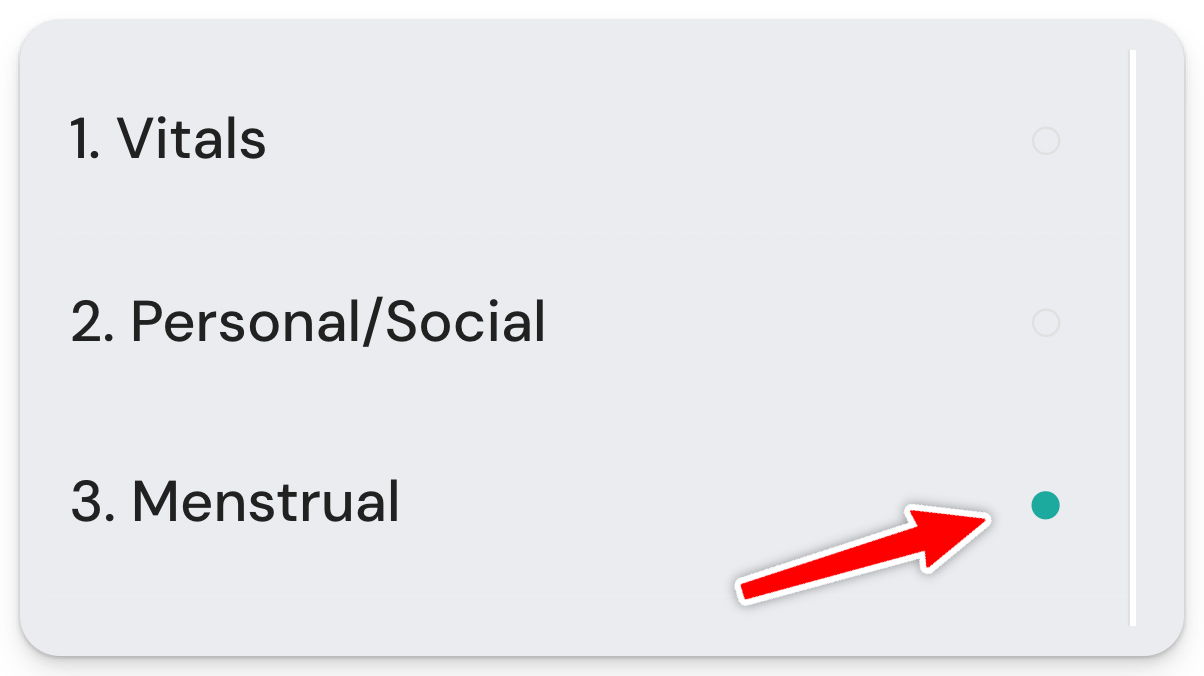
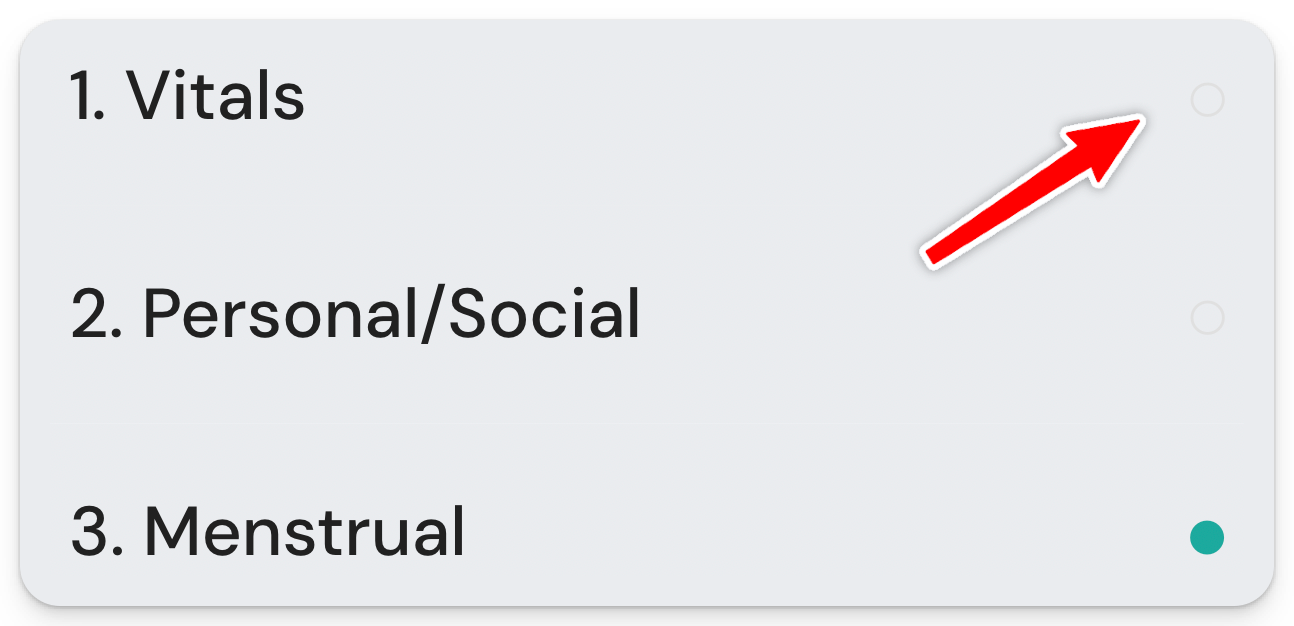
Beside each section name is a small circle. This tells you at a glance whether the section is complete.
- Green dot: the section has all required fields filled in
- No dot (or empty circle): something required is still missing
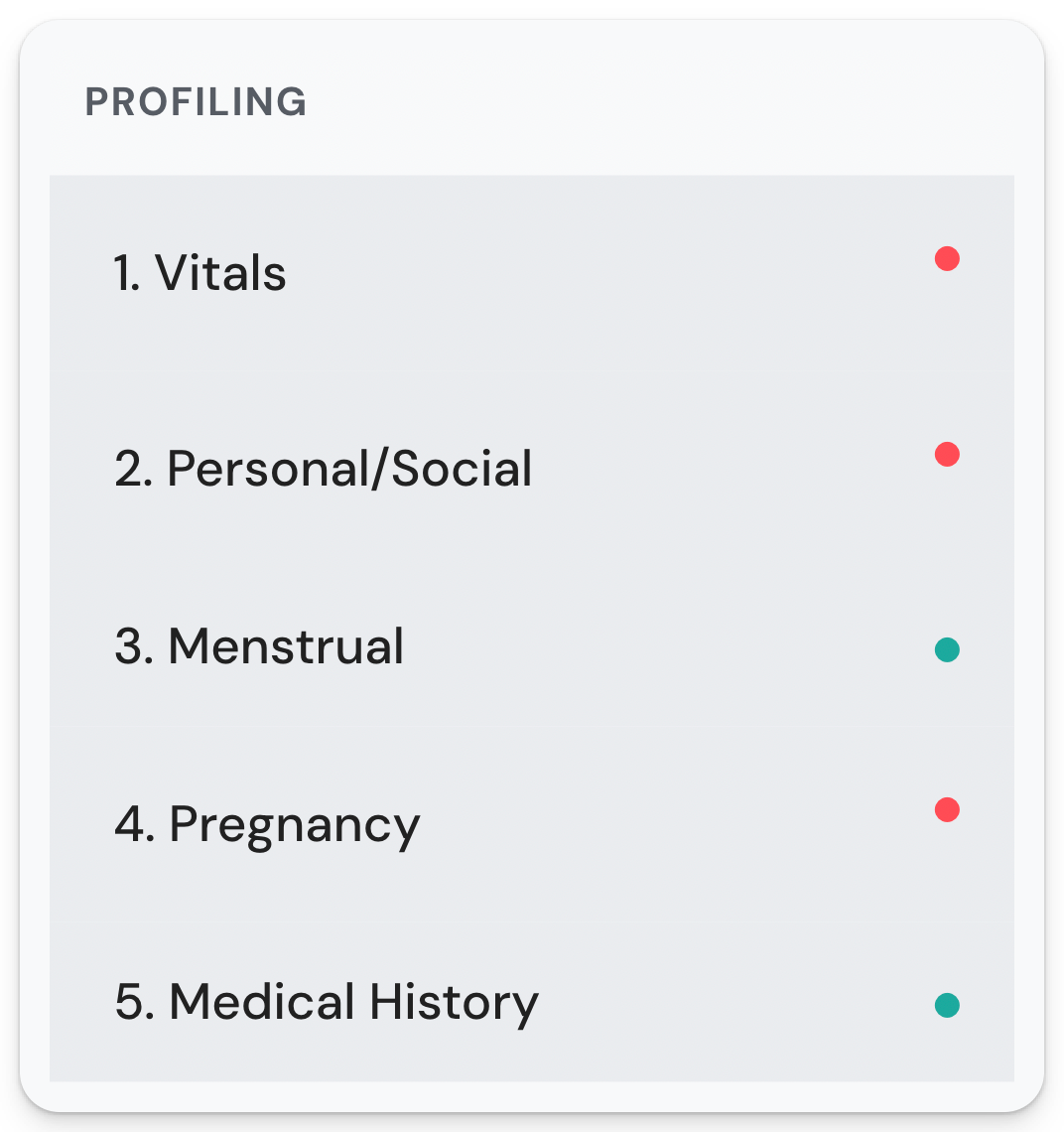
📌 Watch the green dots as you go. A complete FPE means every required section under sections 1 to 9 has a green dot. If any are missing when you mark the visit Complete, the status will show No Submission.
| # | Section | What it captures |
| 1 | Vitals | BP, height, weight, BMI (auto-computed), heart rate, respiratory rate, temperature. Infants need length and mid-upper arm circumference too. |
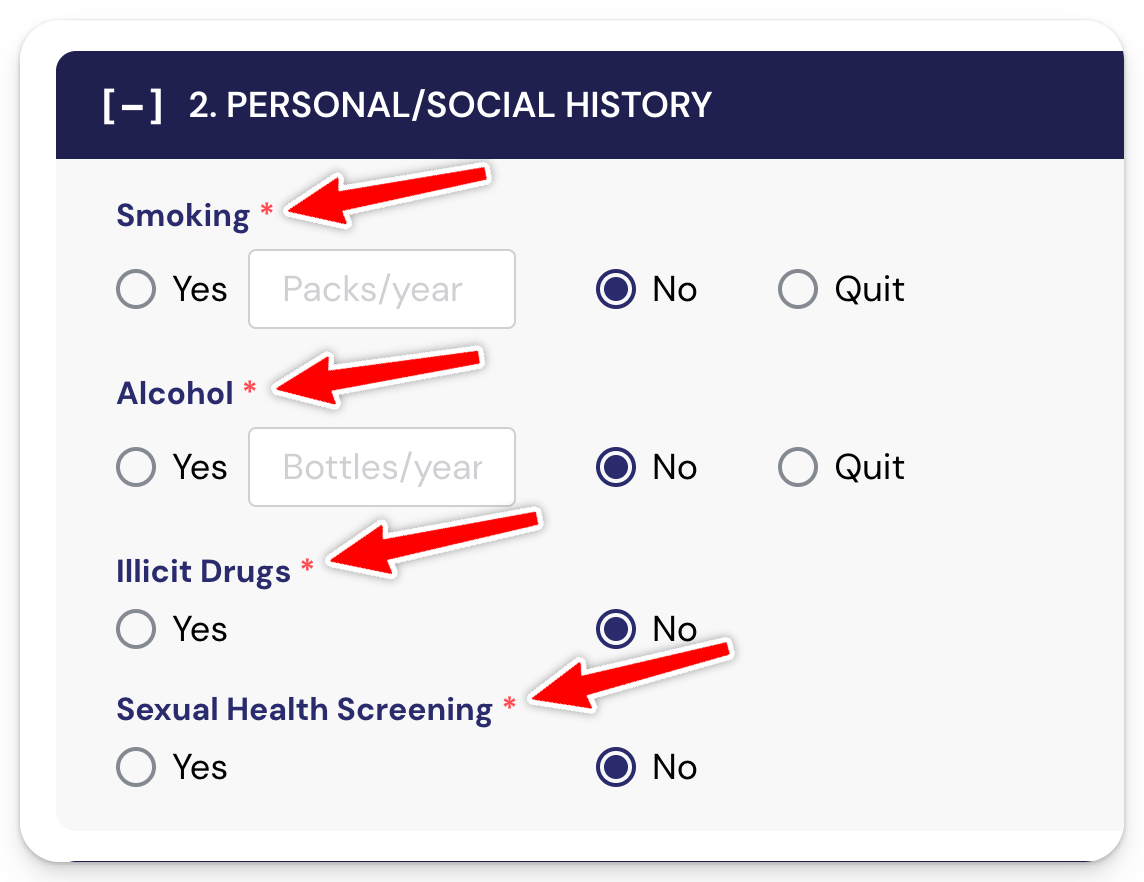
| 2 | Personal/Social | Smoking, alcohol, illicit drugs, sexual health screening. |
| 3 | Menstrual | Toggle off by default. Switch on if applicable and enter LMP and details. |
| 4 | Pregnancy History | Toggle off by default. Switch on if applicable and enter GPTAL. Requires Family Planning access. |
| 5 | Medical History | Defaults to "None ticked." Update if anything notable. |
| 6 | Surgical History | Collapsed by default. Expand to add past surgeries with dates. |
| 7 | Immunization | Collapsed by default. Expand to tick applicable vaccines. |
| 8 | NCD Risk Assessment | Collapsed by default. Expand to enter details. |
| 9 | Findings | Defaults to "Essentially normal." Change if anything abnormal. |
Saving the FPE
Once all 9 sections show green dots, you have two options:
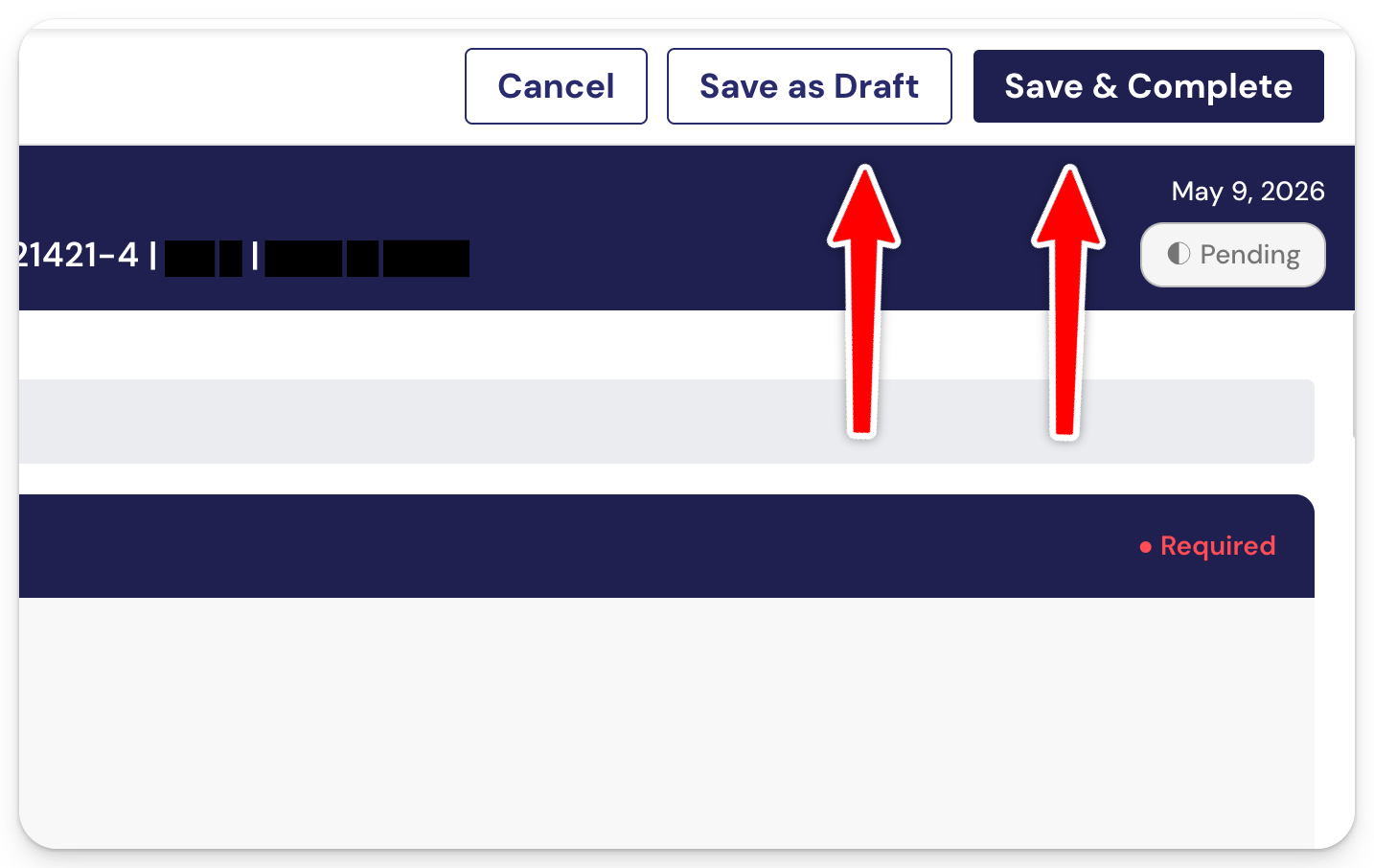
OPTION 1: Save & Complete - Use this when you're done with the FPE for today and you're confident nothing else needs editing.
⚠️ IMPORTANT: Once you mark a record as Complete, you can no longer edit it. Use this only when you're sure.
OPTION 2: Save as Draft - Use this when you might still need to make changes later, or when you stepped away mid-encoding. The record stays editable.
Ending at FPE only (no Consult today)
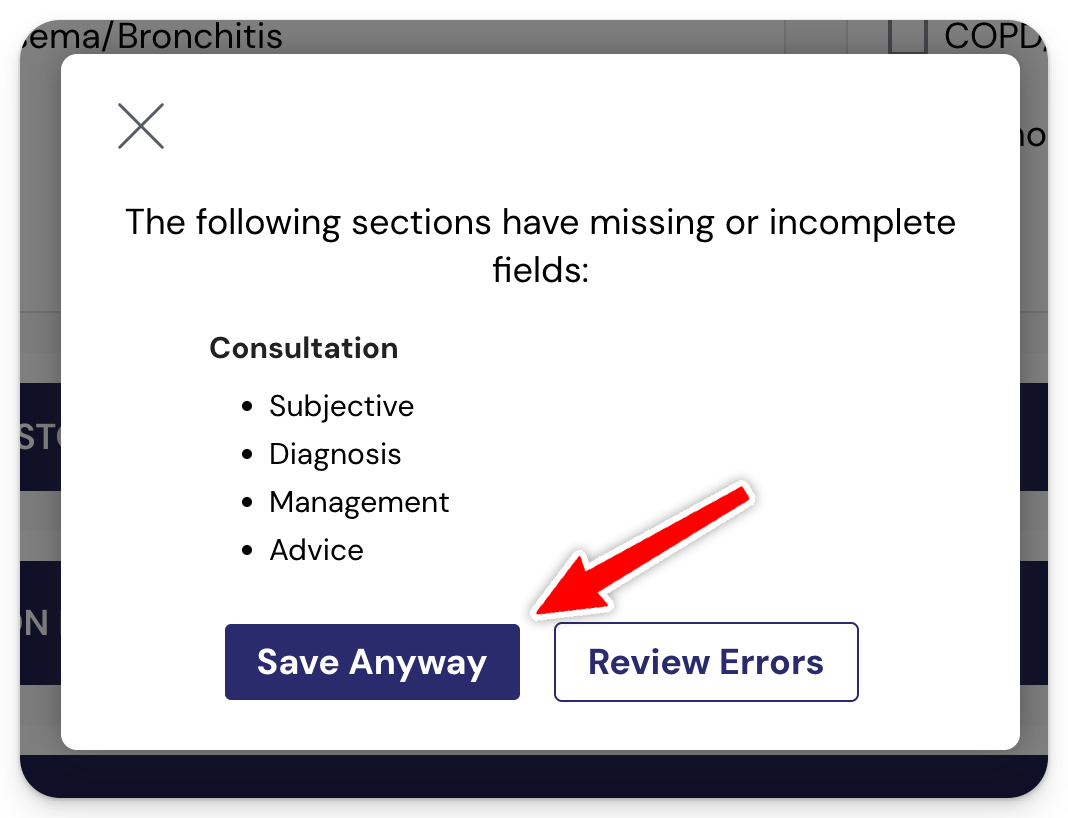
If the patient is only here for profiling and won't have a consult today, click Save & Complete after finishing the 9 FPE sections.
You'll see a warning that the Consult sections are missing. That's expected. Click Save Anyway.
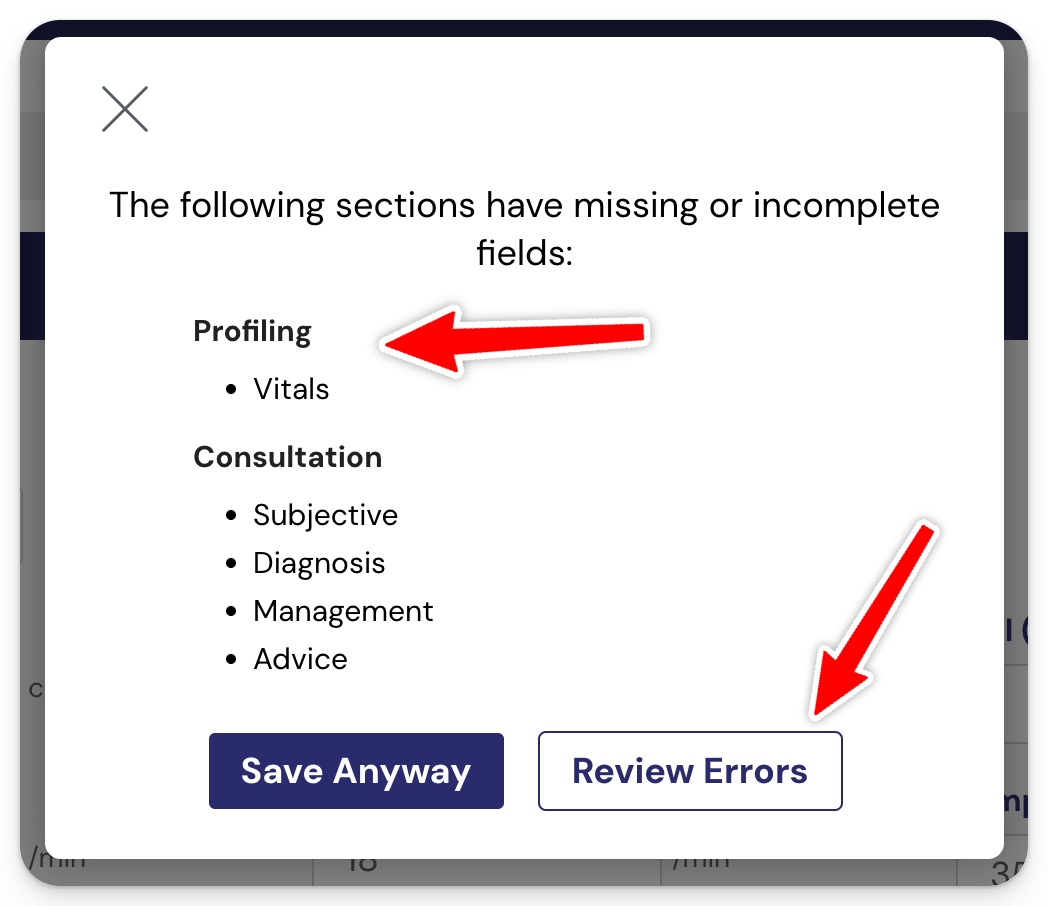
Note: If you see any section under Profiling that is missing/incomplete. Click Review Errors.
When the patient comes back for the consult, you can either add them manually via Daily Visit > Add Patient or run them through the PCU Checker App again.
Either way, they'll appear back in your Daily Visits queue with the FPE already saved. You'll only need to record fresh Vitals and complete the Consult sections (10 to 15).
Frequently Asked Questions (FAQs)
1. I clicked Save & Complete but the status is "Confirm Registration". What do I do?
2. I clicked Save & Complete but the status is "No Submission". What do I do?
3. How do I know which sections are required?
- A red asterisk beside a question marks it as required. The green dot beside the section name (on the left panel) tells you when all required questions in that section have been filled in.