

If you need to see the list of cases included in your YAKAP submissions, you can generate it yourself and download it as a CSV. This is useful for reconciling what you've sent, checking which cases were included in a specific submission, or sharing a record of your submitted cases.
Where to find it
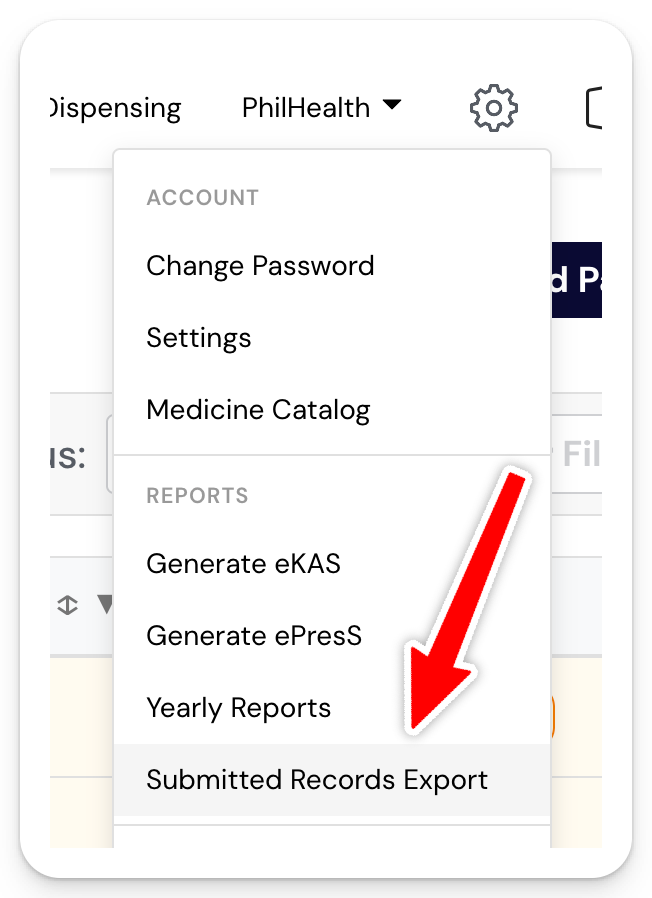
Step 1: Click Settings (gear icon).
Step 2: Go to Submitted Records Export.
Filtering your records
You have two ways to filter, depending on what you're looking for:
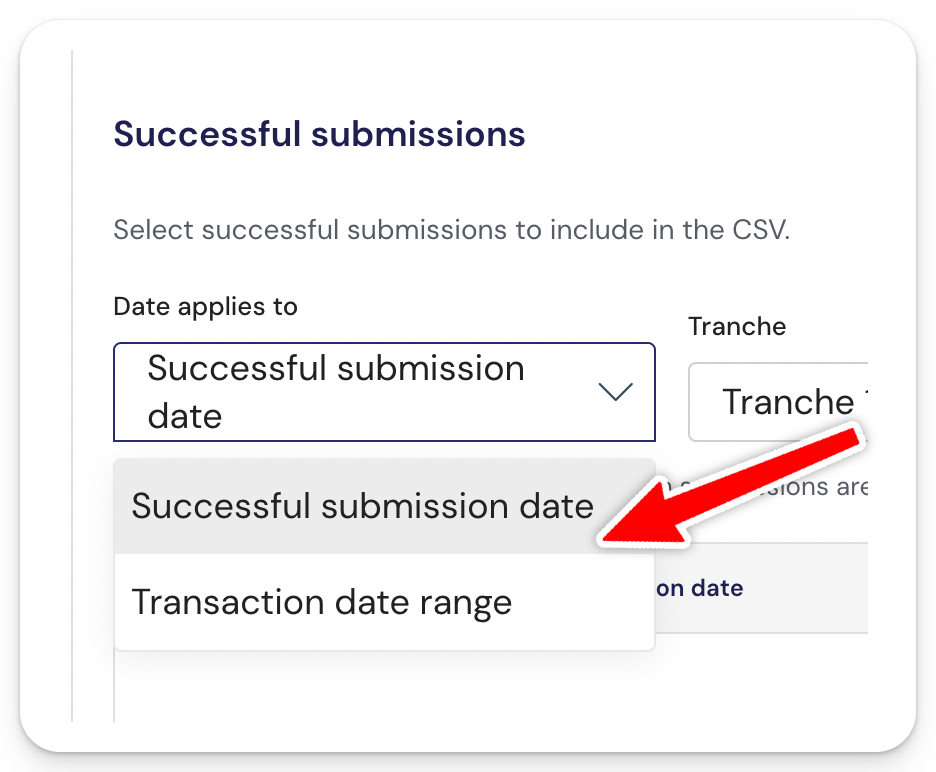
- Successful Submission Date filters by when you submitted the cases. This matches the Submitted column in the table, so it's based on the date you sent the XML.
- Transaction Date Range filters by the dates covered by the submission itself.
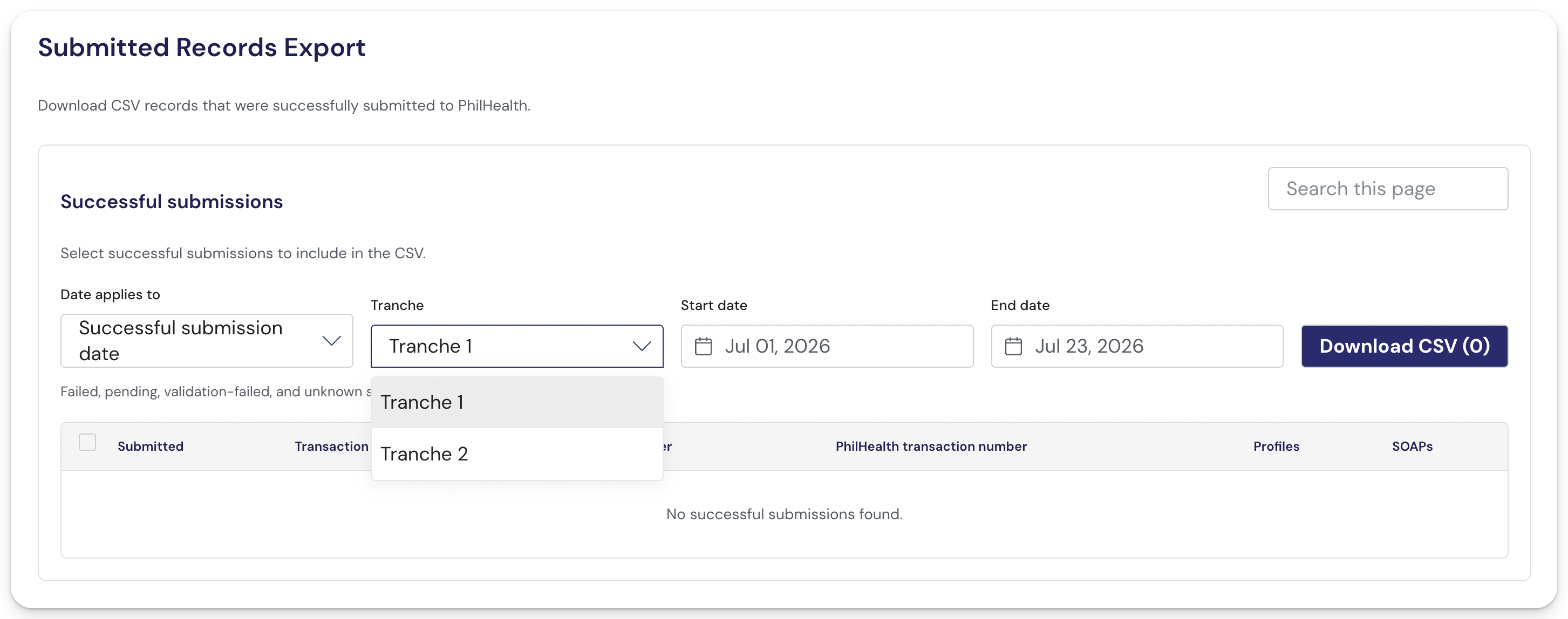
You can also choose whether to view Tranche 1 or Tranche 2 cases specifically.
Selecting and downloading
Tick the box on the leftmost column for the submissions you want to include.
Click Download CSV.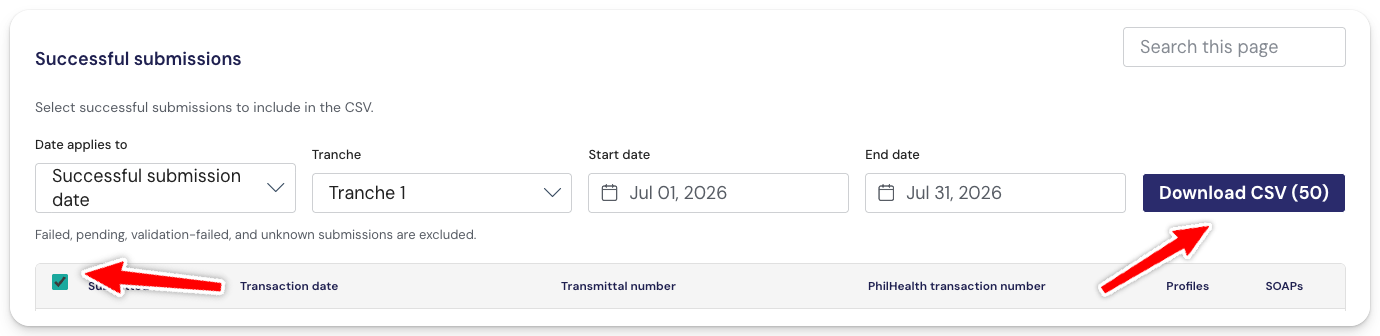
What's in the CSV
The downloaded file includes these columns:
- PhilHealth Transaction Number
- Submission Date
- Transmittal Number
- Case Number
- Patient PIN
- Record Transaction Number
