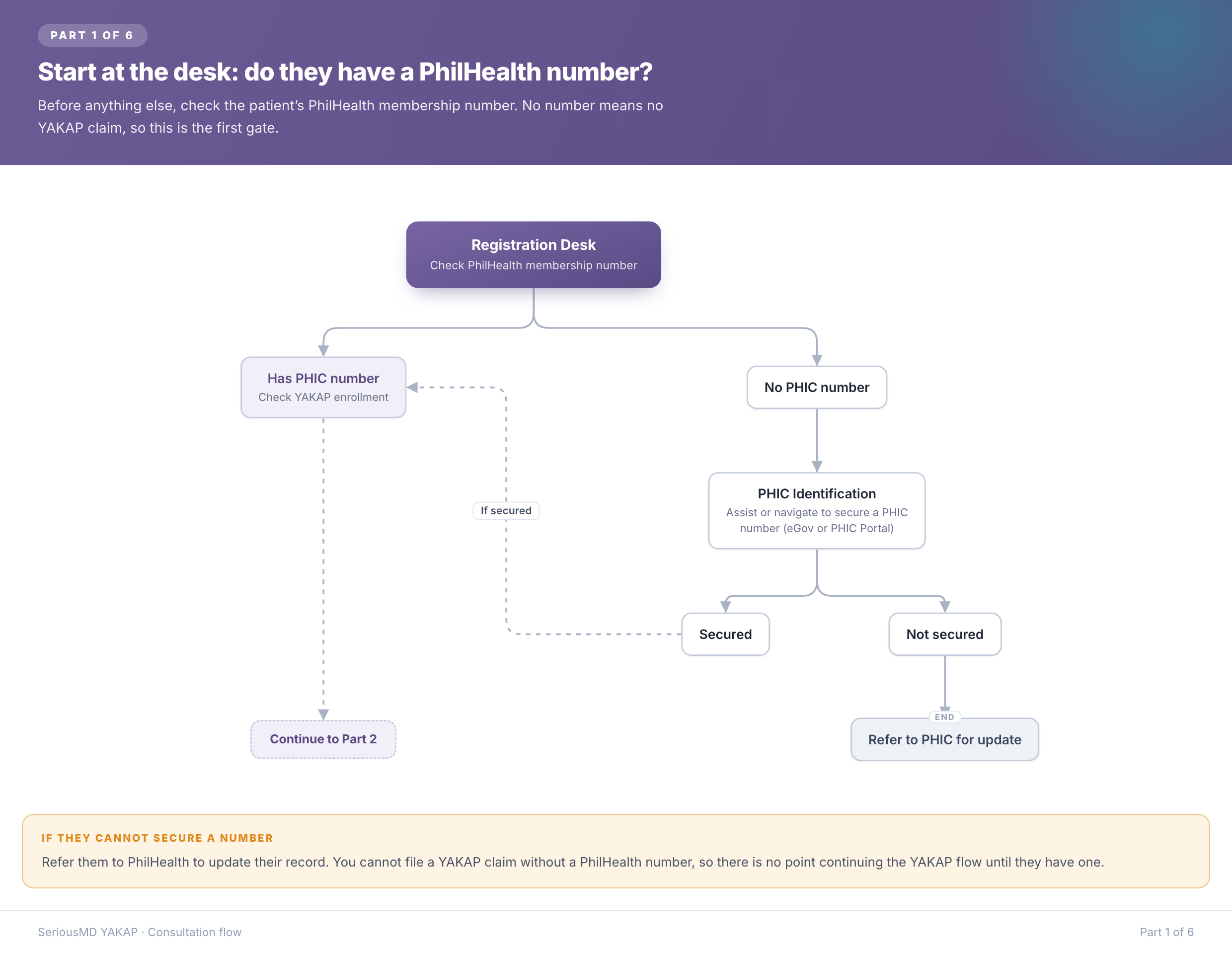
Step 1. Does the patient have a PhilHealth number?
Ask for their PhilHealth number first, before anything else. Without a PhilHealth number you cannot file a YAKAP claim for them.
If they do not have one, help them sign up, or show them where to go: eGov or the PhilHealth website. If they still cannot get one today, send them to PhilHealth to fix their record. There is nothing more you can do until they come back with a number.
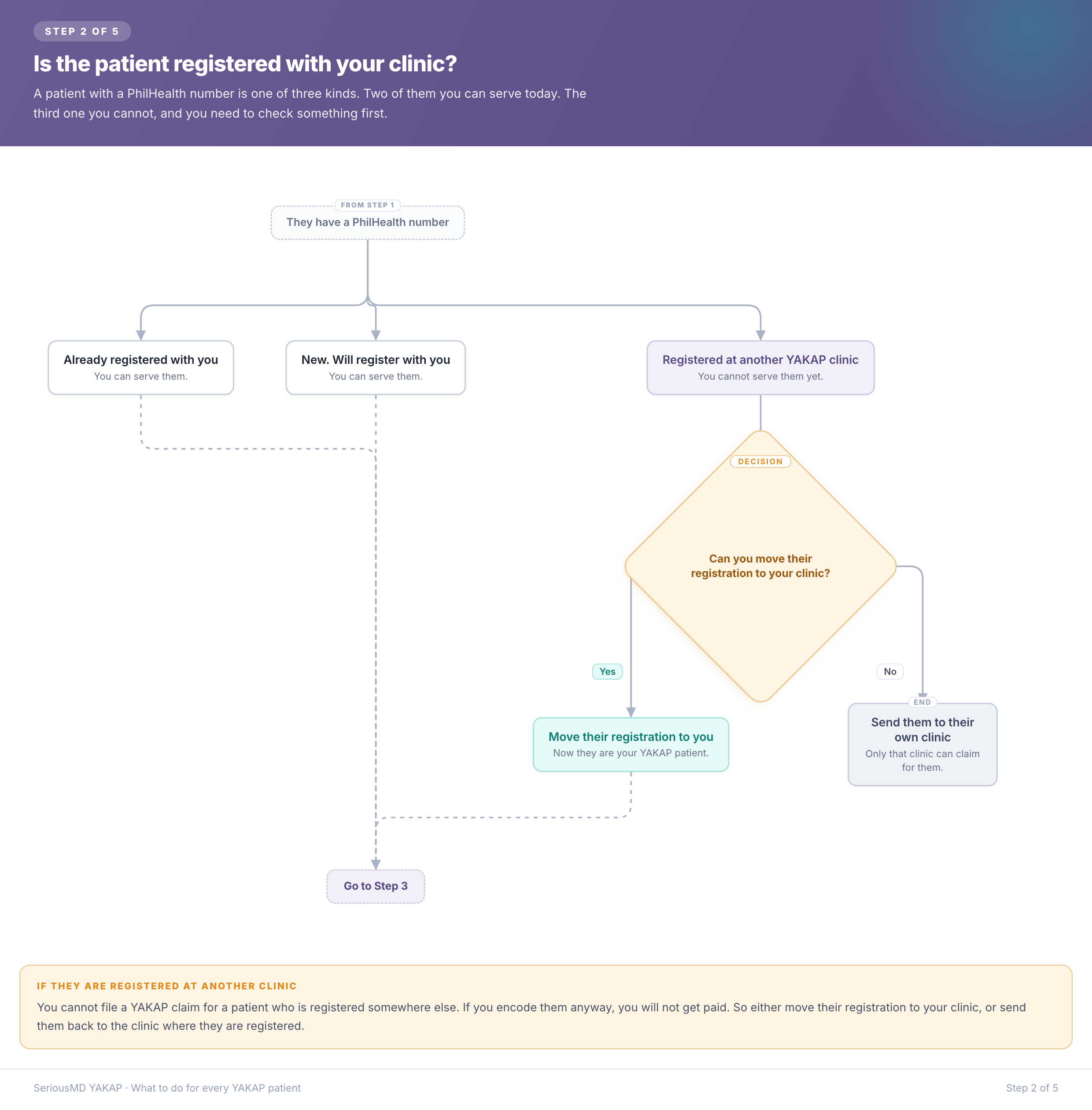
Step 2. Is the patient registered with your clinic?
A patient with a PhilHealth number is one of three kinds:
- Already registered with you. You can serve them today.
- New, and will register with you. You can serve them today
- Registered at another YAKAP clinic. You cannot serve them yet.
For the third kind, check if you can move their registration to your clinic. If yes, move it, and they become your YAKAP patient. If no, send them back to the clinic where they are registered.
You cannot file a YAKAP claim for a patient who is registered somewhere else. If you encode them anyway, you will not get paid.
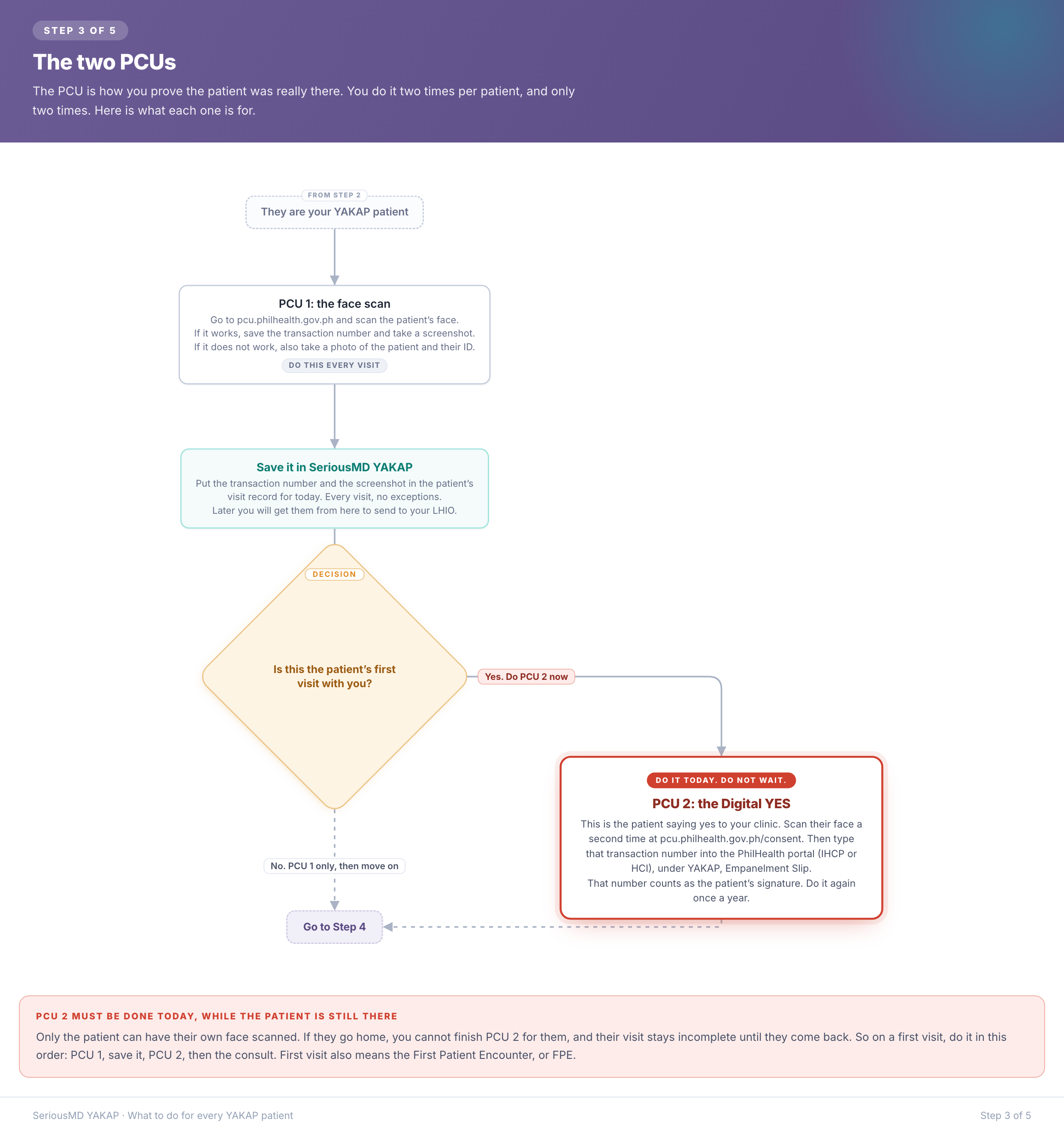
Step 3. The two PCUs
The PCU is how you prove the patient was really there. You do it two times per patient, and only two times.
The first PCU (PCU 1) is the face scan. Do this every visit. Go to pcu.philhealth.gov.ph and scan the patient's face. If it works, save the transaction number and take a screenshot. If it fails, also take a photo of the patient and their ID.
Save it in SeriousMD YAKAP. Every visit, no exceptions. Put the transaction number and the screenshot in the patient's visit record for today. Later you will get them from here to send to your LHIO.
The second PCU (PCU 2) is the Digital YES. Only on the first visit. This is the patient saying yes to your clinic. Scan their face a second time at pcu.philhealth.gov.ph/consent. Then type that transaction number into the PhilHealth portal (IHCP or HCI), under YAKAP, Empanelment Slip. That number counts as the patient's signature. Do it again once a year. It takes the place of the old paper MCA.
PCU 2 must be done today, while the patient is still there. Only the patient can have their own face scanned. If they go home, you cannot finish PCU 2 for them, and their visit stays incomplete until they come back. So on a first visit, do it in this order: PCU 1, save it, PCU 2, then the consult. First visit also means the First Patient Encounter, or FPE.
On the next visits, PCU 1 only. But still save it every time.
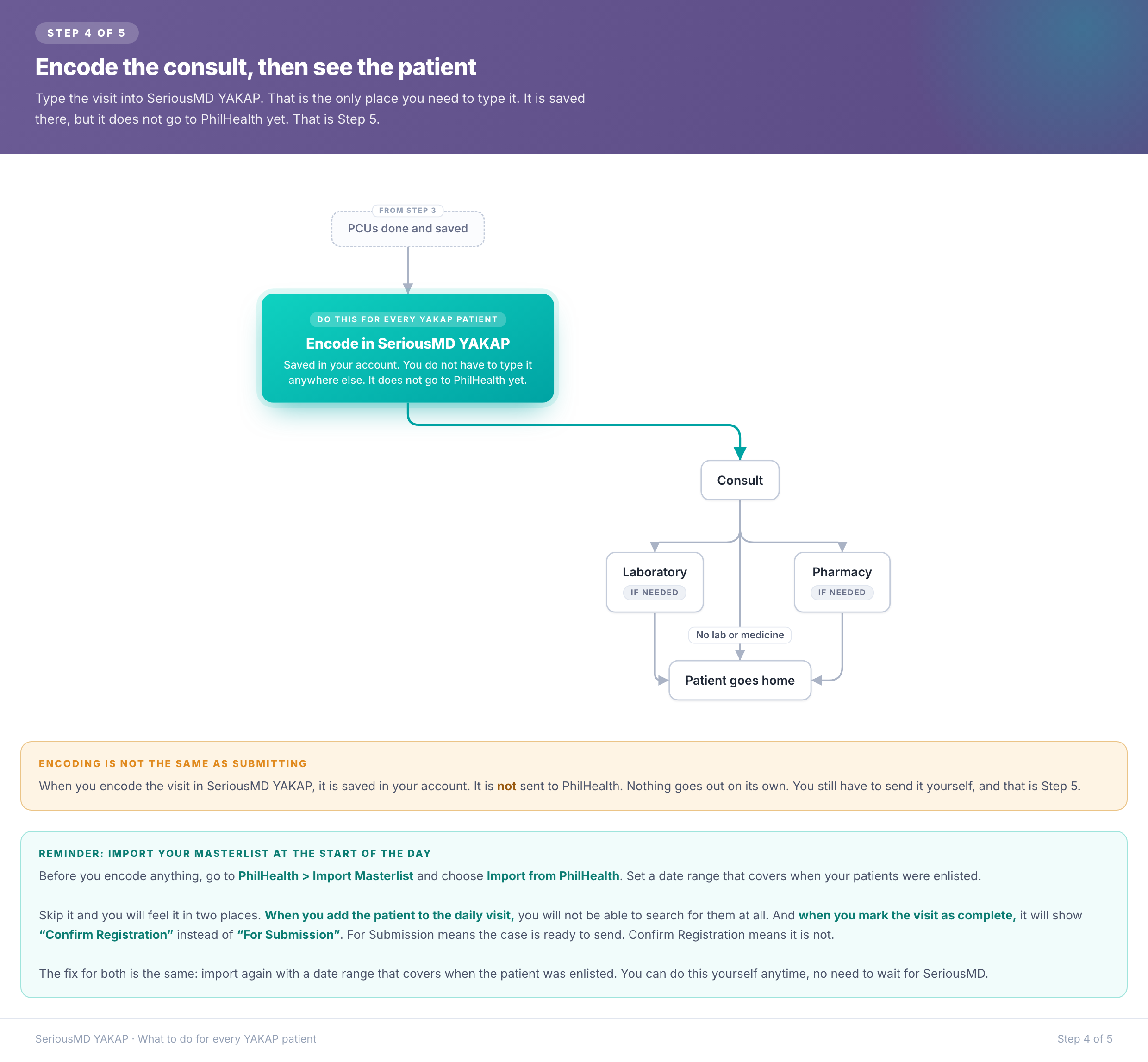
Step 4. Encode the consult while seeing the patient
Type the visit into SeriousMD YAKAP. That is the only place you need to type it. It sends the claim to PhilHealth by itself, so you do not have to copy it anywhere else.
Type the visit into SeriousMD YAKAP. That is the only place you need to type it, so you do not have to copy it into another system.
Encoding is not the same as submitting. The visit is saved in your account, but it is not sent to PhilHealth. Nothing goes out on its own. You send it yourself in Step 5.
Reminder: import your masterlist at the start of the day. Before you encode anything, go to PhilHealth > Import Masterlist and choose Import from PhilHealth. Set a date range that covers when your patients were enlisted.
If skipped:
- When you add the patient to the daily visit, you will not be able to search for them at all.
- When you mark the visit as complete, it will show "Confirm Registration" instead of "For Submission". For Submission means the case is ready to send. Confirm Registration means it is not.
The fix for both is the same: import again with a date range that covers when the patient was enlisted. You can do this yourself anytime, no need to wait for SeriousMD.
Then the consult, then laboratory or pharmacy if needed, then mark as complete.
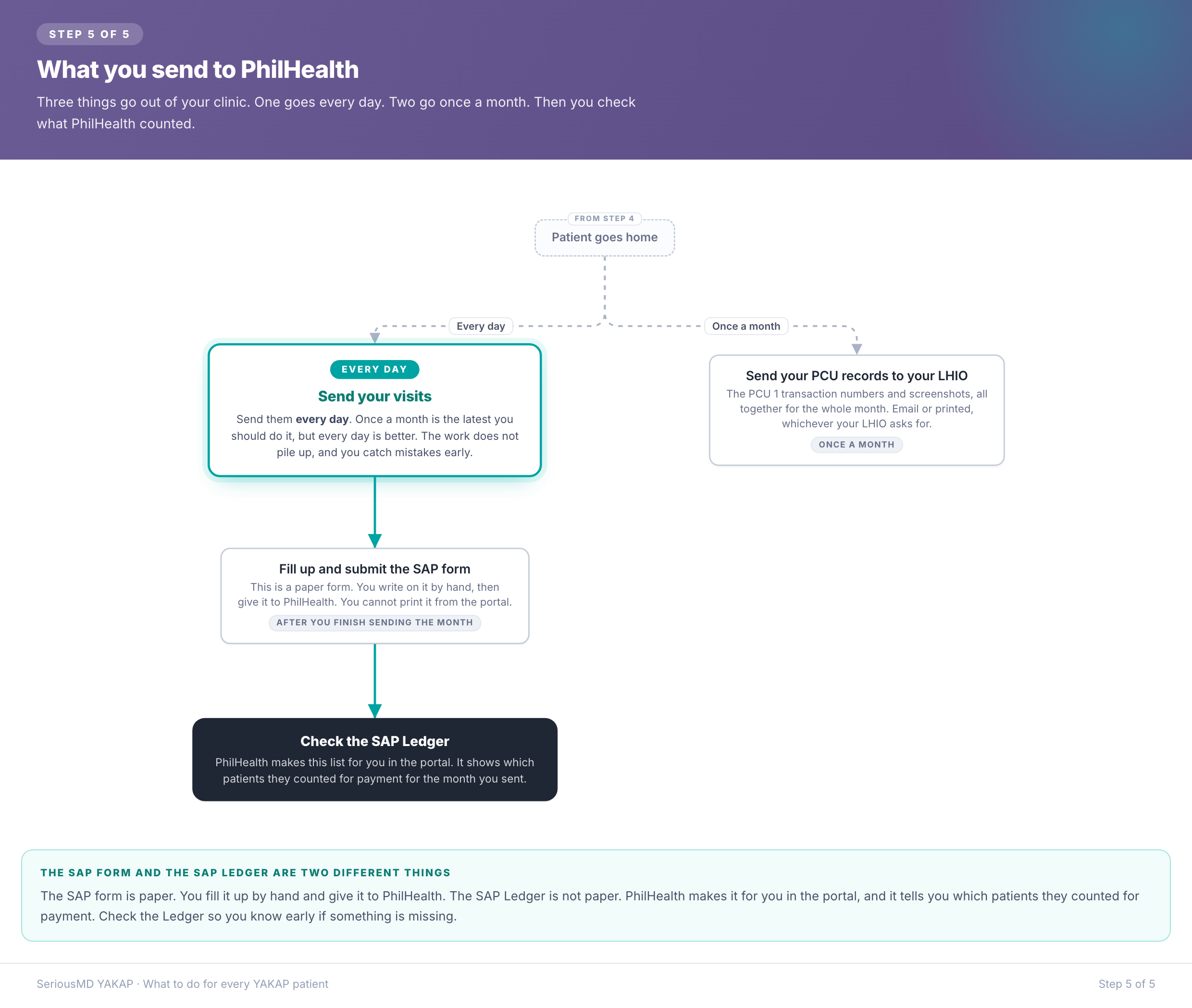
Step 5. What you send to PhilHealth
Three things go out of your clinic. One goes every day. Two go once a month.
- Your visits. Every day. Once a month is the latest you should do it, but every day is better.
- Your PCU liveness check results. Once a month. The PCU 1 transaction numbers and screenshots, all together for the whole month, to your LHIO by email or printed, whichever they ask for.
- The SAP form. Once a month. This is a paper form. You write on it by hand, then give it to PhilHealth.Do this after you finish sending the month.
Then check the SAP Ledger in the PhilHealth portal. PhilHealth makes this list for you, and it shows which patients they counted for payment for the month you sent. Check it so you know early if something is missing.