1. Download the Installer
Open the link provided and download

2. Install the Application
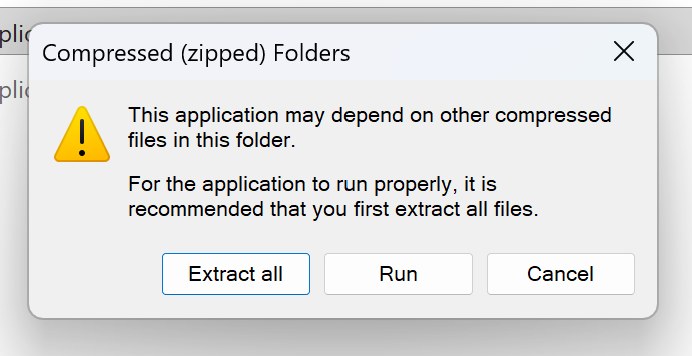
- Once downloaded, double-click
SMD Yakap PCU 1.0.0to open the file. - Click Run
3. App Launch
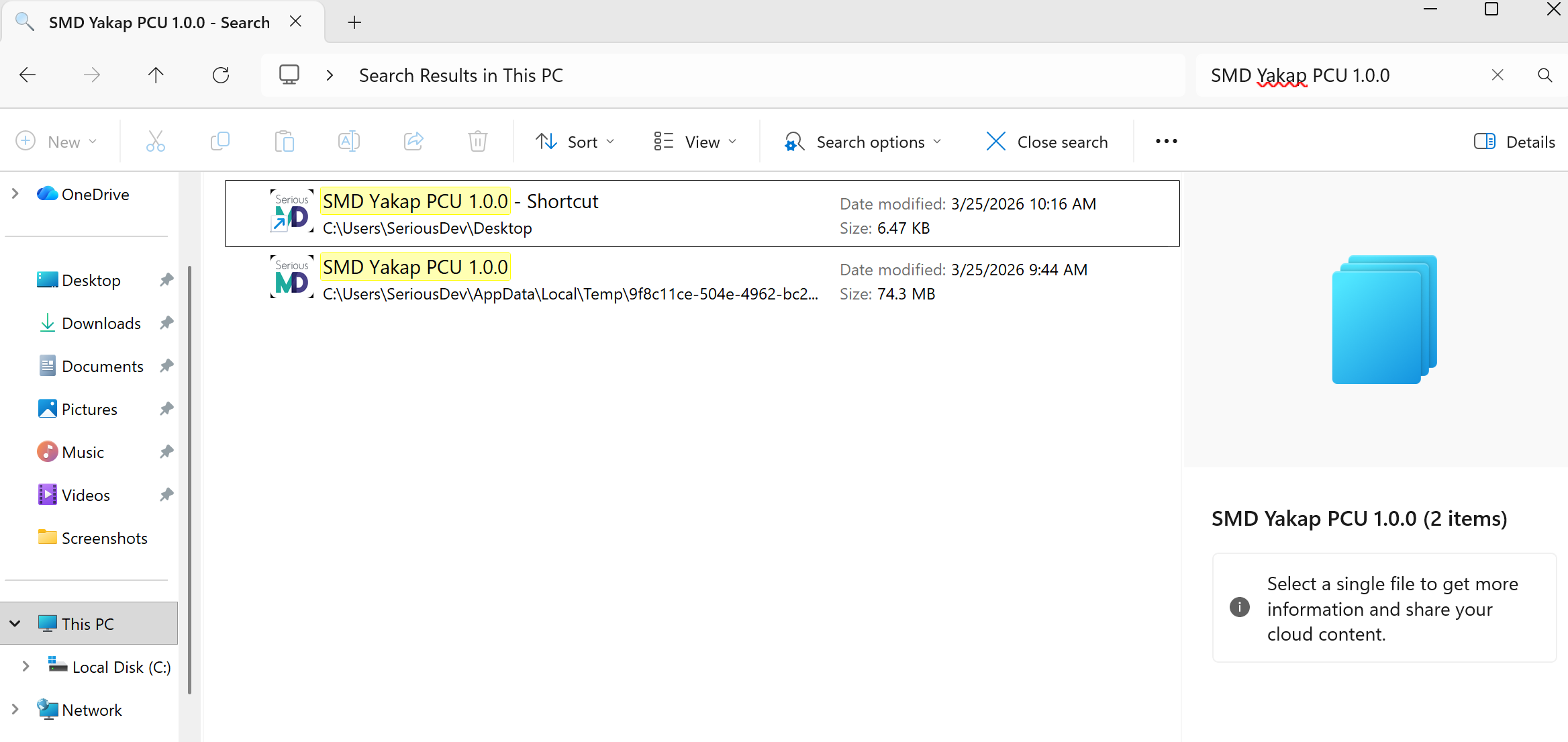
- Search and open the SMD Yakap PCU on your Local Disk
- It should now open successfully
4. Create a Shortcut on your Desktop
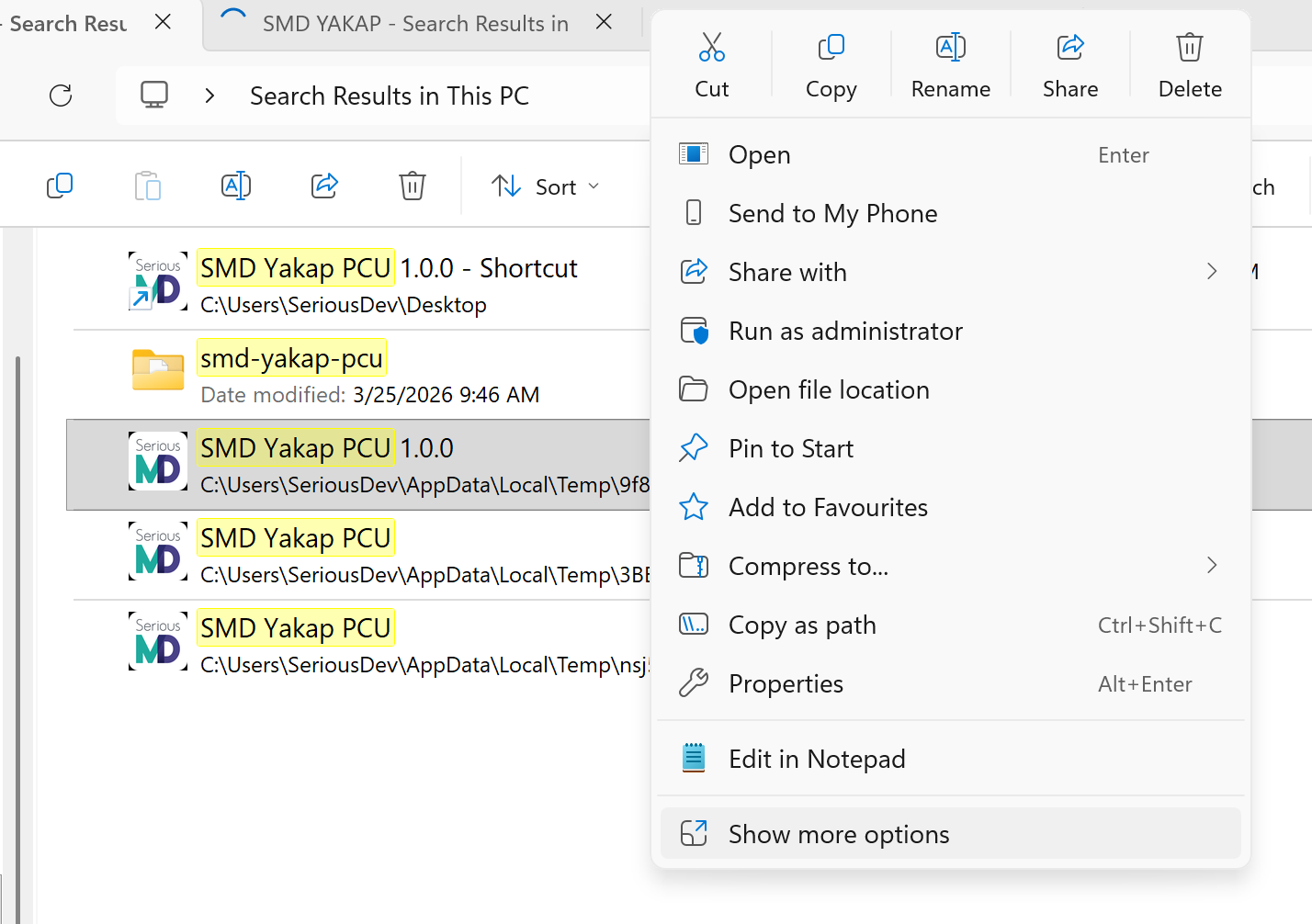
- Right-click on the app, select Show More Options
- Click Create Shortcut
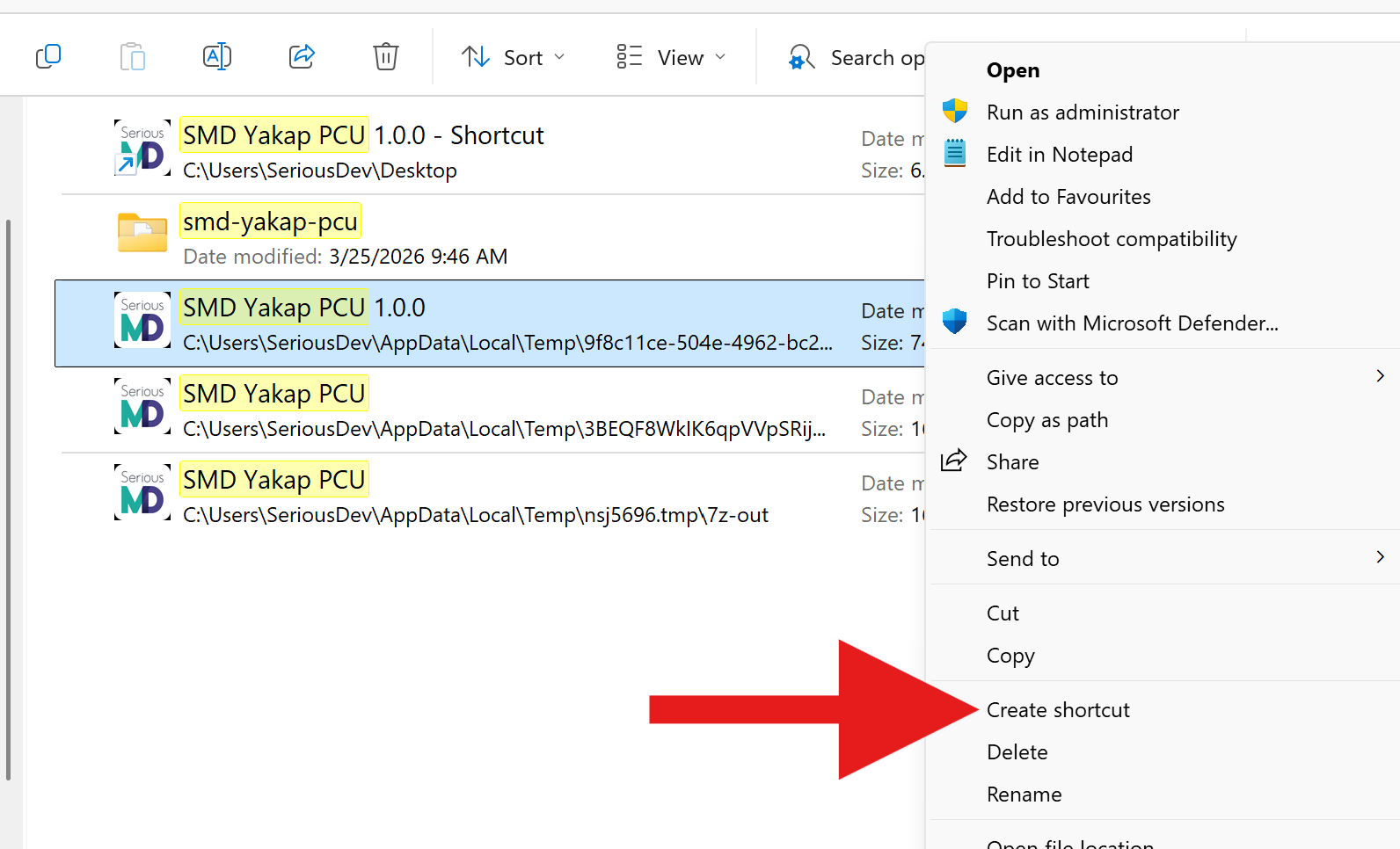
- You should see the SMD Yakap PCU on your desktop.

5. Log In
- Enter the link and login credentials provided by the SeriousMD team. You will receive an email similar to this
Example Email:
Your YAKAP Account is ready.
CLICK THE LINK TO ACCESS SMD YAKAP: https://yakap-p111111111.seriousmd.com
Username: user@seriousmd.com
Password: PASSWORD123456
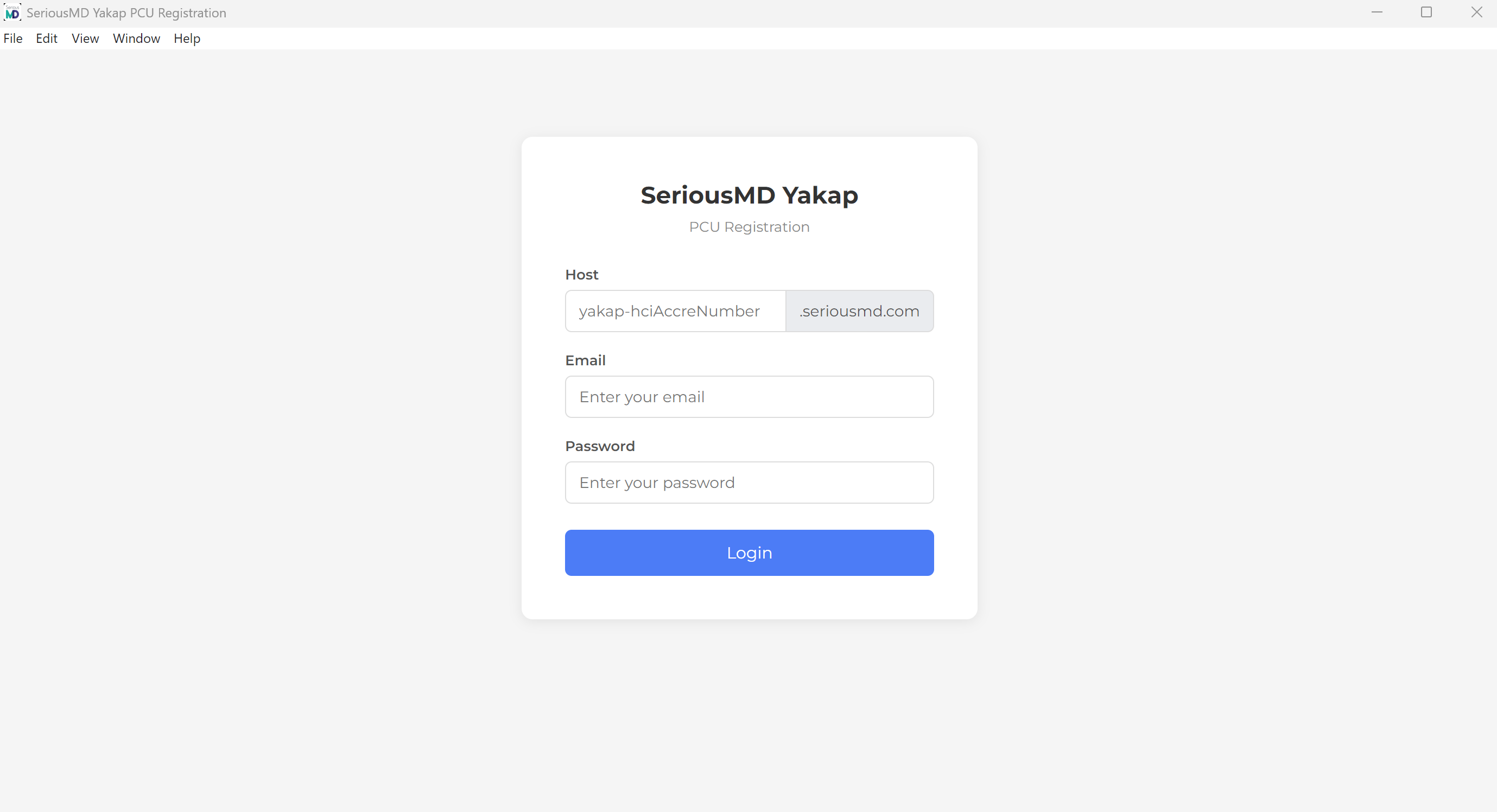
- You can now start registering patients
Troubleshooting Installation Issues
If you encounter an error when opening the app (e.g., Windows blocking the file), follow these steps:
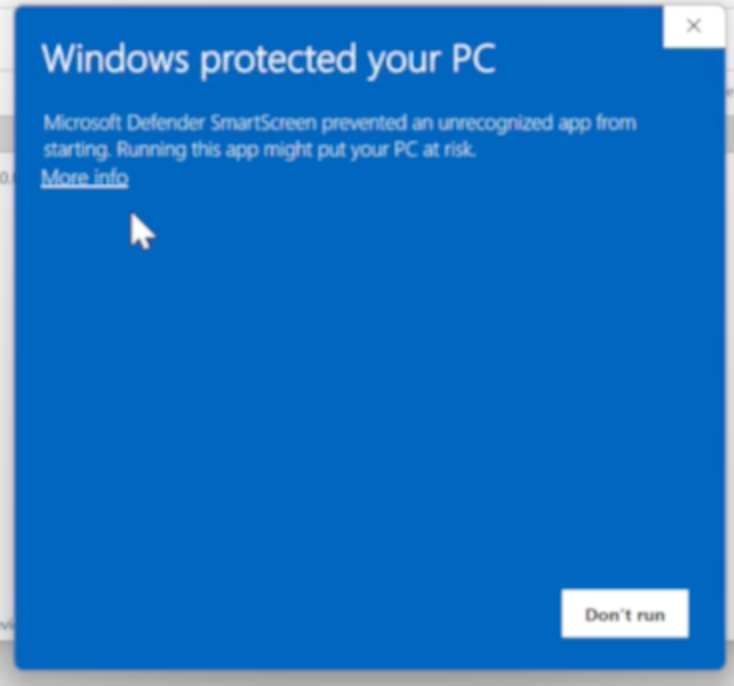
Adjust Windows Security Settings
Open Settings
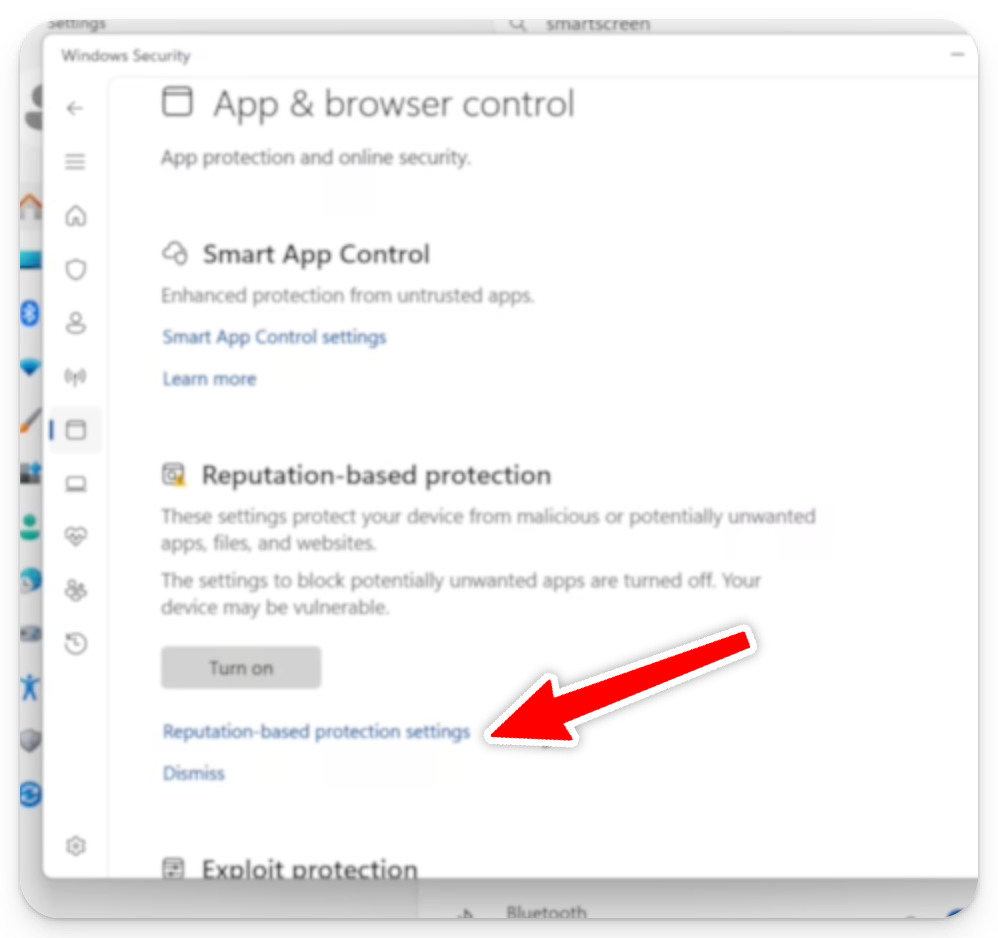
Search for “SmartScreen” or “Windows Security”
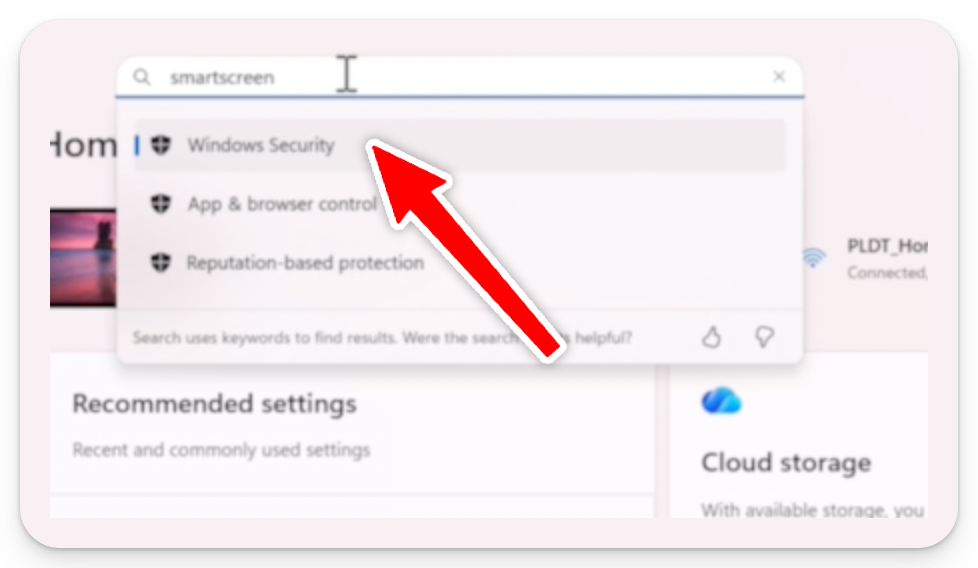
Go to App & Browser Control
Click Reputation-based protection settings
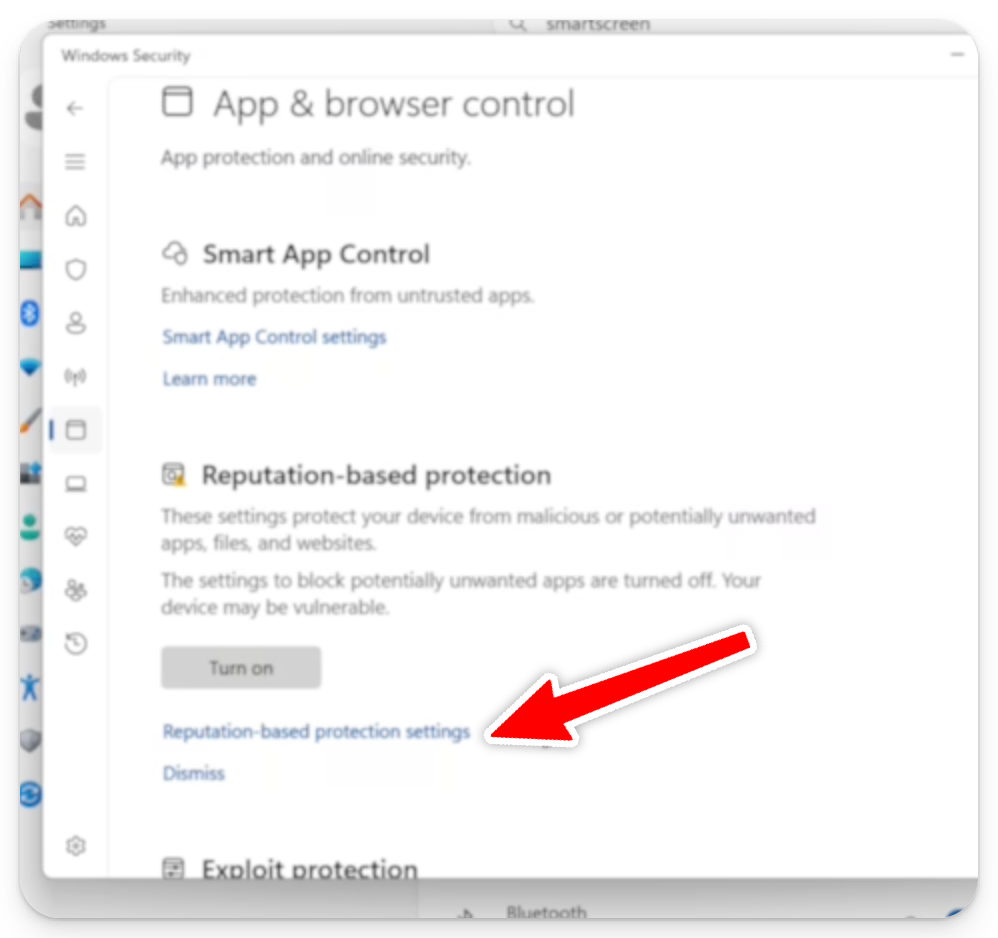
Toggle OFF “Check apps and files
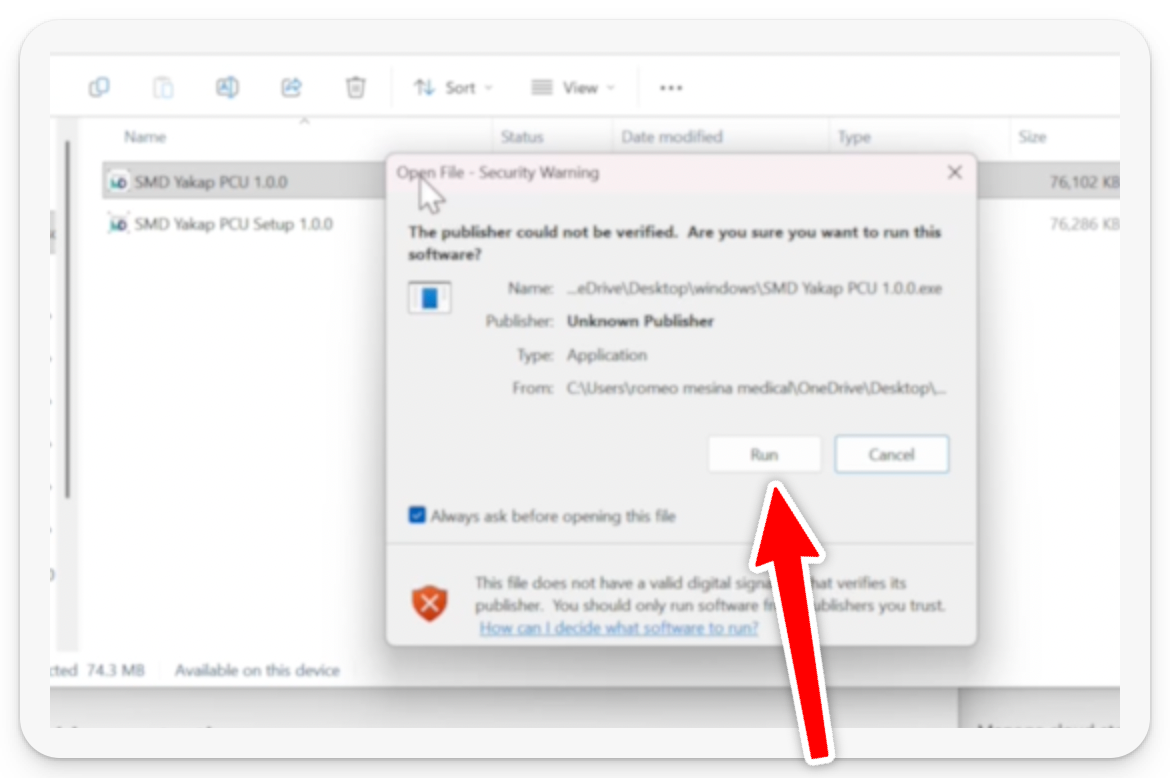
After attempting to open the app:
- A security warning may appear
- Simply click Run to proceed
You should now be able to successfully install and access the SMD Yakap PCU app 🎉
How to Type ñ without a numpad on Windows 11
To easily type ñ , you can enable the US-International keyboard on your system.
Step 1: Add the US-International Keyboard
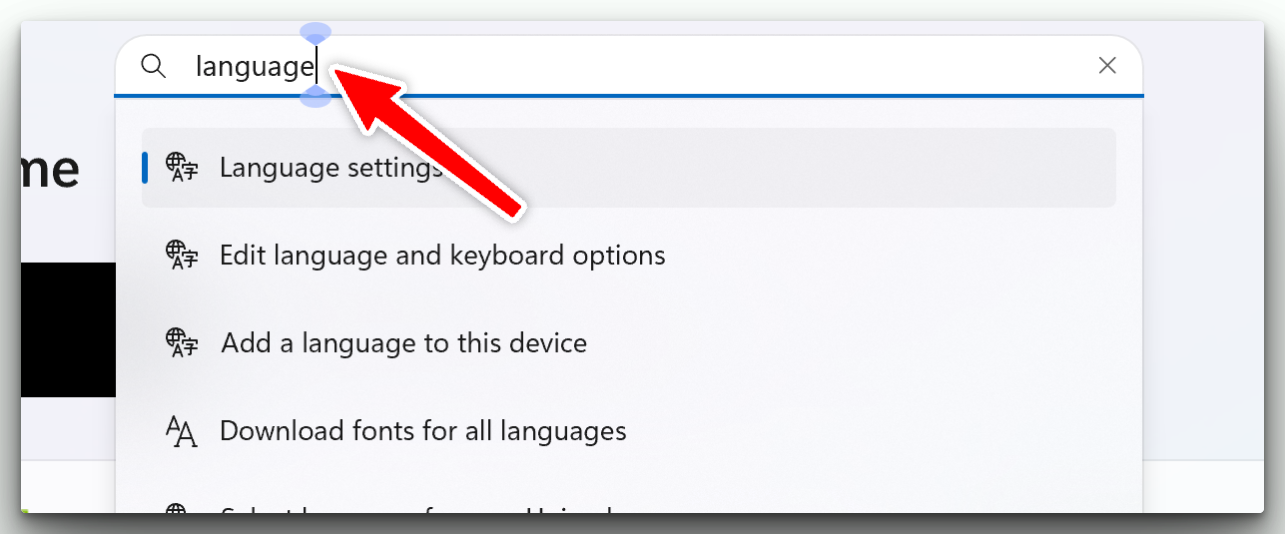
- Press Windows + I to open Settings
- In the search bar, type Language settings and open it.
- Under Windows display language, make sure English (United States) is selected.
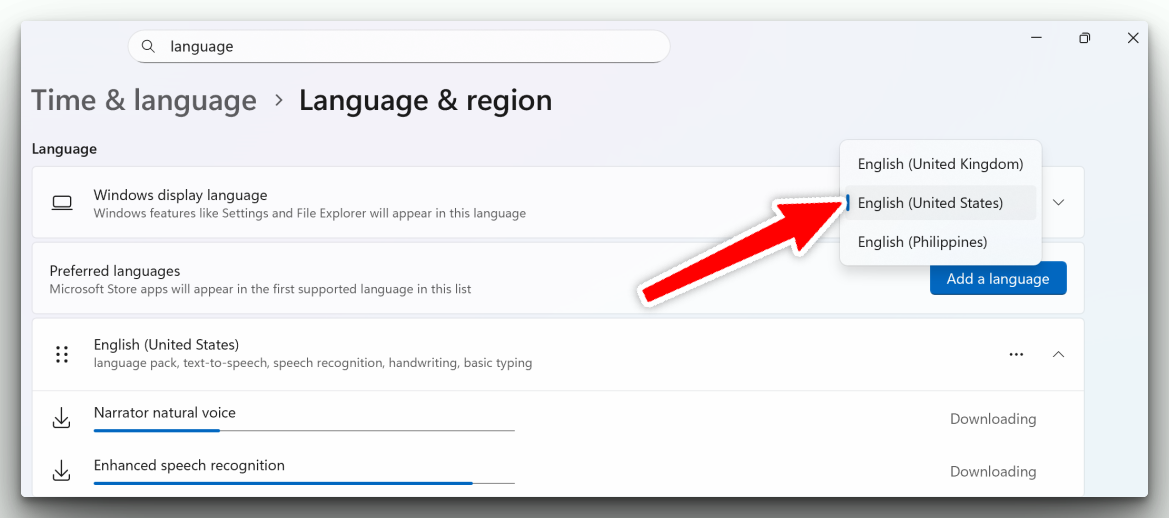
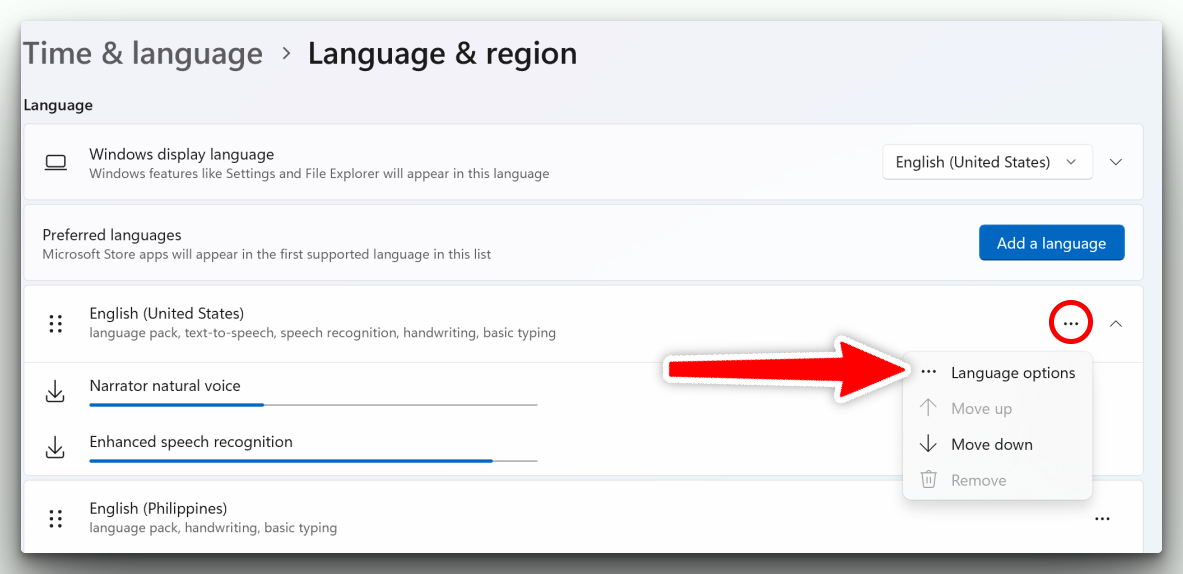
- Under Preferred languages, select English (United States)
- If it’s not listed, click Add a language and install it
- Click the three dots (⋯) next to it → select Language options
- Scroll down to Keyboards, then click Add a keyboard

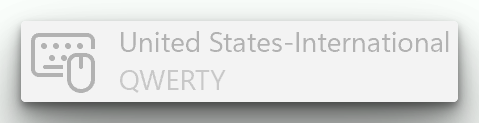
- Choose United States-International
Step 2: Switch to the US-International keyboard
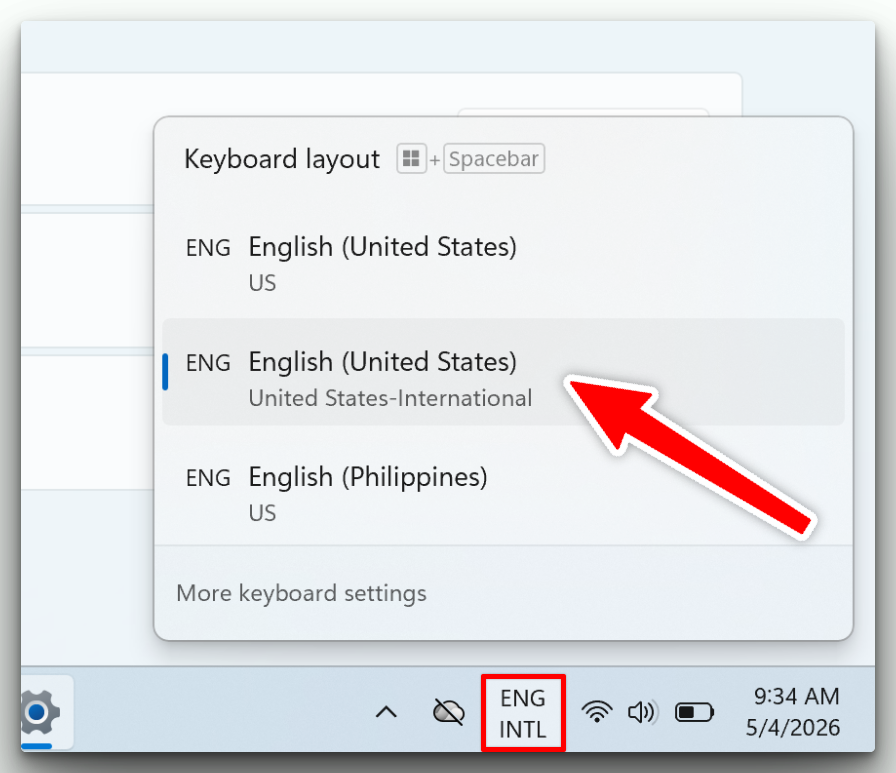
- Press Windows key + Spacebar
- Choose ENG INTL (United States-International)
Step 3: Type ñ
Press Shift then ~ + n → ñ